Blog · 10 min read
Two Pass NVDA and Firefox Screen Reader Testing Developers Can Run

Screen reader testing is hands-on verification that assistive technology can actually use your site, not just parse it. Start with NVDA paired with Firefox, run a two-pass check (read-through, then keyboard-only interaction), and confirm the same flows work on a mobile reader like VoiceOver or TalkBack. Desktop and mobile behave differently enough that skipping one leaves real gaps in your coverage.
TL;DR:
Testing should prioritize NVDA with Firefox as a baseline before extending to VoiceOver on iPhone or iPad to ensure mobile accessibility.
A logical heading structure and proper landmark use are critical, as most users navigate pages primarily via headings and skip patterns.
Manual testing should follow a two-pass approach: passively listen to content then verify all interactive elements are operable and labeled correctly.
Relying solely on automated tools can miss important usability issues like reading order, live-region updates, and focus traps, which only manual testing can catch.
Regular, integrated testing throughout development and post-launch helps maintain accessibility and provides documented evidence for WCAG compliance.
Table of Contents
-
Who Actually Uses Screen Readers, and Which One Should You Test First?
-
Where Can You Find Screen Reader Commands and Practice Scenarios?
What Is Screen Reader Testing and How Do Readers Work?
A screen reader is software that converts on-screen content into speech or braille output, letting people who are blind or have low vision navigate a page without seeing it. It doesn’t read your HTML directly. It queries the browser’s accessibility tree, which the browser builds from your markup and exposes through platform APIs like Microsoft’s UI Automation, Apple’s NSAccessibility, or Android’s AccessibilityService.
That handoff is why sloppy markup breaks the experience even when a page looks fine visually. If a <div> behaves like a button but has no role or label, the accessibility tree has nothing meaningful to hand off, and the reader announces silence or “clickable” with no context.
Desktop and mobile readers diverge in how people use them:
-
Desktop: NVDA and JAWS run on Windows, controlled almost entirely through keyboard commands.
-
Mobile: VoiceOver (iOS) and TalkBack (Android) rely on touch gestures like swipes and double-taps instead of a keyboard.
Semantic HTML and correct ARIA attributes are the only reliable foundation here. There’s no substitute.
Who Actually Uses Screen Readers, and Which One Should You Test First?
Testing priorities should follow real usage, not guesswork. On desktop, JAWS and NVDA are nearly tied as the most-used primary readers, at 40.5% and 37.7% respectively. On mobile, the field isn’t close: VoiceOver commands a strong majority of mobile screen reader use, making it close to essential for any site with meaningful mobile traffic.
By the numbers: A majority of surveyed screen reader users say they navigate pages primarily by jumping between headings. That single statistic should reshape how you prioritize testing.
If your heading structure is broken, you’re failing the single most common navigation method before a user reaches your content. The practical takeaway: build your baseline coverage around NVDA paired with Firefox, then extend testing to VoiceOver on an actual iPhone or iPad before you call mobile “done.”
How Do Screen Readers Move Through a Page?
Screen reader users rarely read top to bottom like a sighted visitor scanning a page. They jump. Headings, landmarks (<nav>, <main>, <aside>), and list or “rotor” modes let a reader skip straight to the content type they want, whether that’s every heading on the page, every form field, or every link.
This is why a logical heading hierarchy matters more than most developers assume. An <h3> sitting under an <h1> with no <h2> in between doesn’t just look odd in code. It tells a screen reader user the page’s structure is broken, and they’ll assume content is missing even when it isn’t.
Landmarks work the same way at a coarser level, letting users skip straight to <main> and bypass repeated navigation on every page load. Rotor and list modes (VoiceOver’s rotor, NVDA’s elements list) are how experienced users audit a page fast: pull up the list of headings, the list of links, the list of form fields, and scan for problems before committing to a full read-through.
Three scenarios cover most real-world testing needs:
-
Finding specific content on a long page using headings alone.
-
Navigating a site’s primary menu without a mouse.
-
Completing a multi-field form, including error recovery.
Pro Tip: Pull up your site’s heading list in NVDA (press Insert + F7) before you test anything else. If the outline reads like nonsense out of context, fix that first. Everything downstream depends on it.
What Is the Right Testing Workflow and Checklist?
The most efficient method is the two-pass approach: read through content passively first, then go back and test every interactive element with a keyboard.
Pass one: content read-through. Turn on your screen reader, close your eyes or turn off the monitor, and use the Down Arrow (NVDA) to move through the page linearly. Listen for logical order, meaningful alt text, and headings that make sense out of context.
Pass two: interactive testing. Use Tab to move between interactive elements only. Confirm every link, button, and form field is reachable, labeled, and operable without a mouse.
Start with NVDA + Firefox on desktop, since NVDA is free and pairs reliably with Firefox. Add VoiceOver + Safari for iOS and TalkBack + Chrome for Android to cover mobile. Bring in JAWS only when a client or compliance policy specifically requires it.
| Checklist item | What to verify |
|---|---|
| Headings | Logical hierarchy, no skipped levels, descriptive text |
| Links and buttons | Unique accessible names, no “click here” |
| Images | Meaningful alt text, decorative images marked empty |
| Forms | Labels tied to inputs, errors announced clearly |
| Tables | Header cells associated with data cells |
| Dynamic content | Live regions announce updates without stealing focus |
| Focus management | Visible focus order matches visual layout |
| Modals | Focus trapped inside, returns to trigger on close |
Record findings with a short reproduction script: what you did, what you expected, what actually happened. A one-line transcript of the announced text is often more useful to a developer than a screenshot ever could be.
For command references beyond the basics covered here, platform documentation like Microsoft’s Narrator guide covers the full command set for each reader.
What Mistakes Lead to False Negatives in Testing?
The single biggest testing mistake is relying on your eyes. If you can see the screen while testing, you’ll unconsciously fill in gaps a screen reader user never gets. Close your eyes, or turn the monitor off, and test purely by ear.
Browser and reader pairings aren’t interchangeable. NVDA behaves differently in Chrome than in Firefox, and testing with the wrong combination can hide real bugs or manufacture false ones. Stick to the pairings that most reflect what your users actually run.
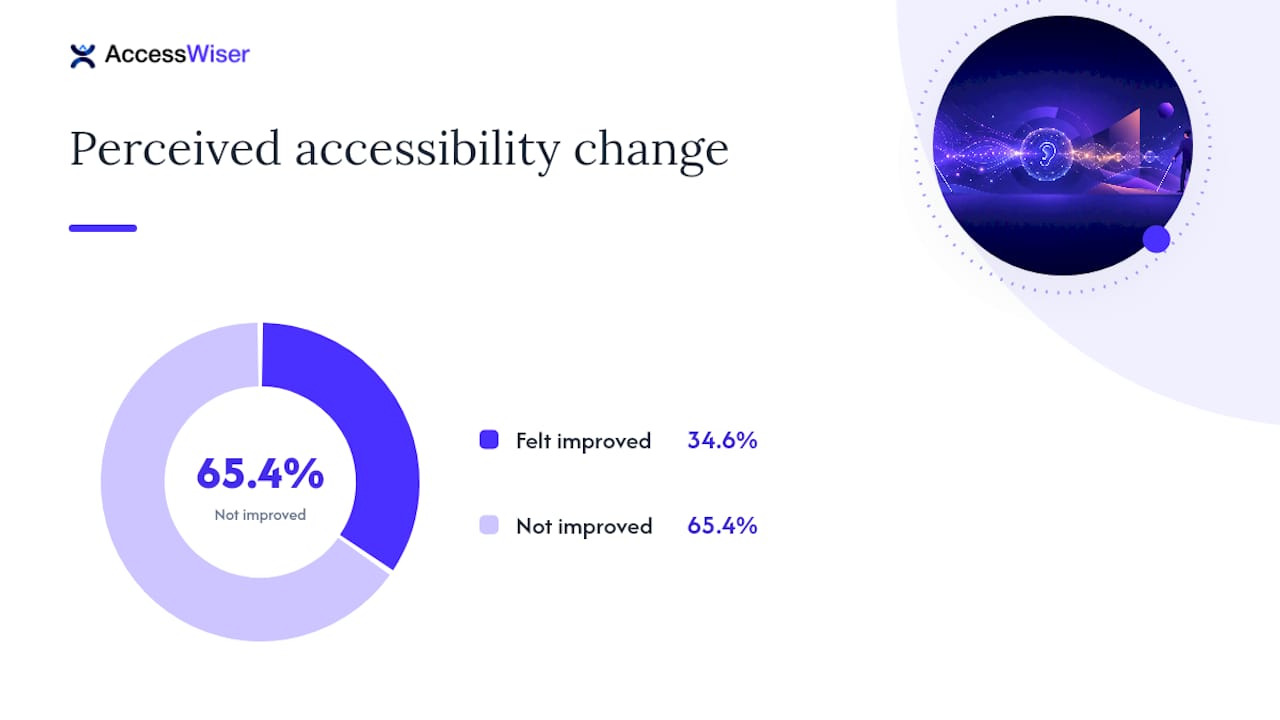
Automated scanners are genuinely useful, but they can’t catch reading order, live-region timing, or focus traps the way a manual pass does. Only about 34.6% of survey respondents felt accessibility had improved over the previous year, a sign that manual verification still catches problems tools miss.
-
Never test with sound off and eyes on the screen.
-
Never assume one reader/browser pairing represents all of them.
-
Never treat a clean automated scan as proof the page works for real users.
Pro Tip: Focus management and ARIA misuse cause more silent failures than missing alt text ever does. If a modal doesn’t trap focus, a screen reader user can tab straight into content behind it without realizing they left the dialog.
How Often Should You Run Screen Reader Tests?
Screen reader testing works best as a habit, not an event. Build it into these checkpoints:
-
Per-feature checks during development, done by the engineer who wrote the component.
-
Pre-release QA on any page or flow that changed, using your baseline NVDA + Firefox pairing.
-
Scheduled regression tests on a recurring basis, since a CSS change or third-party script update can quietly break something that worked before.
-
Post-release spot checks on high-traffic or high-risk pages like checkout and account forms.
This is the essence of shift-left accessibility: teaching developers basic screen reader checks early catches semantic and focus problems while they’re still cheap to fix. Escalate to additional readers, like JAWS or a wider device matrix, when user reports flag a specific pairing, or when enterprise procurement policies require it.
Does Screen Reader Testing Prove WCAG Compliance?
Manual testing and automated scanning validate different things, and neither one alone gives you the full picture. Hands-on testing with a real screen reader confirms usability outcomes tied to specific WCAG success criteria: meaningful sequence (1.3.1), name/role/value exposure for custom controls (4.1.2), and whether live regions actually announce updates without disorienting the user.
Automated tools are excellent at flagging missing alt attributes, contrast ratio failures, and unlabeled form fields at scale. What they consistently miss is reading order, the timing of dynamic announcements, and whether a modal traps focus the way it should.
-
Automated scans catch technical, code-level violations quickly and at volume.
-
Manual screen reader tests catch usability failures that only surface through real interaction.
-
User testing with actual assistive technology users adds a layer neither method fully replaces.
-
Documented remediation records tie it all together into evidence a compliance program can actually point to.
Where Can You Find Screen Reader Commands and Practice Scenarios?
A short cheat sheet gets most testers moving faster than a full manual. In NVDA, Insert + Down Arrow reads all content, Insert + F7 pulls up the elements list (headings, links, landmarks), and Ctrl + Alt + Arrow keys navigate table cells. VoiceOver’s rotor (Ctrl + Option + U) lets you cycle between headings, links, and form controls without hunting manually. TalkBack uses swipe gestures to move between elements and a two-finger tap to pause or resume reading.
Download NVDA directly and review its documentation before your first session, since the official Harvard accessibility guide walks through setup and common commands step by step. Practice on a real form, a navigation menu, and a page with a modal dialog. Those three scenarios surface most of the issues you’ll encounter in production.
Making Screen Reader Testing a Habit, Not a One-Off Audit
Most teams treat screen reader testing as something you do once before launch. That’s backwards. The sites with the fewest complaints from real assistive technology users are the ones where a developer runs NVDA + Firefox on every new component, not just the ones where someone eventually ran a big audit.
Keep dated records of what you tested and what you fixed. When a compliance question or a funding conversation comes up, “here’s our test log” beats “we believe it’s accessible” every time. Prioritize your riskiest journeys first: checkout, account creation, anything involving a form with validation.
— The AccessWiser Team
How AccessWiser Complements Manual Screen Reader Testing
Manual testing tells you how a page feels to a screen reader user. It doesn’t scale to every page on a growing site, and it doesn’t leave a permanent record on its own. That’s where automated coverage earns its place alongside the workflow above.
AccessWiser’s accessibility solutions scan your site against WCAG 2.2 AA success criteria, with Section 508 and EN 301 549 mappings, and tie each finding to the exact element and criterion involved. Every issue comes with plain-language guidance for fixing it directly in your code, plus scheduled re-checks that catch regressions between your manual test cycles. Dated scan and fix records pair naturally with your own accessibility statement, giving you documented evidence alongside your testing logs. AccessWiser also offers a visitor-facing widget with contrast, text, and reading adjustments for people navigating your site right now. Start a trial and see how automated scanning fits into the workflow you’ve already built.
Sources
For deeper reference material beyond this workflow, the WebAIM Screen Reader User Survey breaks down usage patterns in detail. The DO-IT testing guide from the University of Illinois covers the two-pass method step by step, and ADA.gov provides policy context for compliance programs building on this testing foundation.
Articles on this blog are general information about web accessibility, not legal advice. Laws change and their application depends on your specific situation — for decisions with legal consequences, consult a qualified legal professional.
Articles on this blog are general information about web accessibility, not legal advice. Laws change and their application depends on your specific situation — for decisions with legal consequences, consult a qualified legal professional.