Blog · 18 min read
Fix WordPress Accessibility Errors: Code Level WCAG 2.2 AA Workflow

WordPress accessibility errors are content and code failures that keep your site from meeting WCAG 2.2 AA standards, and they cluster around six repeat offenders: low color contrast, missing alt text, broken form labels, keyboard and focus traps, misused ARIA, and plugin output that ignores accessible markup entirely. If you fix nothing else this week, run an automated scan and then tab through your own site using only the keyboard. That combination is a practical first pass.
TL;DR:
Most WordPress accessibility errors stem from themes and plugins injecting markup with issues like poor contrast, missing alt text, or inaccessible widgets, not core WordPress itself.
Automated tools can detect contrast failures, unlabelled form fields, and missing ARIA attributes, but manual testing is essential for keyboard navigation and focus management problems.
Fixes should target code-level issues by updating theme colors, adding proper label associations, and replacing custom widgets with native HTML elements, so fixes live in the code itself.
Regular scans before and after updates, plus thorough manual checks with screen readers and keyboard navigation, help catch regressions early.
Documented logs of scans and fixes, coupled with an accessibility statement, give you a clear, dated record of your accessibility work.
Table of Contents
-
Common Accessibility Errors in WordPress Video and Audio Content
-
Why Dynamic Content and ARIA Live Regions Cause Accessibility Errors
-
Language Attribute Mistakes That Break Screen Reader Pronunciation
-
Mobile Accessibility Pitfalls in Responsive WordPress Design
-
When Should You Fix WordPress Accessibility Errors In-House vs. Hire Outside Help?
What Are the Most Common WordPress Accessibility Errors?
Every WordPress site accumulates the same handful of accessibility problems, usually because a theme, a plugin, and a content editor each made a small, reasonable-looking decision that broke something downstream. Here’s where they show up and why they matter.
Color contrast failures are the most visually invisible and functionally common issue. WCAG 2.2 requires a 4.5:1 contrast ratio for normal text and 3:1 for large text under success criterion 1.4.3, while focus indicators are covered separately by 2.4.7 Focus Visible and the 3:1 non-text contrast rule in 1.4.11. Light gray text on white backgrounds, low-contrast placeholder text in form fields, and pastel buttons with white labels all fail this test. You can measure contrast with a browser extension or by inspecting computed color values directly in DevTools.
Missing or incorrect alt text shows up constantly in media libraries. The fix depends on the image’s role: decorative images need an empty alt="" attribute so screen readers skip them, while informative images need a description that conveys the same information a sighted visitor gets. Complex images like charts or infographics need a long description, often placed in adjacent text or a linked transcript, because a single alt attribute cannot carry that much meaning.
Form accessibility breaks in predictable ways: inputs without associated <label> elements, error messages that appear visually but never get announced to screen readers, and CAPTCHA widgets with no non-visual alternative. A sighted user sees a red border and an error string. A screen reader user tabs right past it without hearing anything changed.
Keyboard navigation and focus management cause some of the worst experiences. Focus indicators removed with outline: none and never replaced, modal windows that trap focus so a keyboard user can’t tab back out, and sticky headers that cover the very element that just received focus, which is exactly what WCAG 2.2’s new 2.4.11 Focus Not Obscured (Minimum) criterion targets at Level AA.
Beyond those, watch for:
-
Heading structures that skip levels (H2 straight to H4) or use headings purely for visual size rather than document structure
-
Landmark regions (
<nav>,<main>,<aside>) missing or duplicated, which confuses screen reader navigation -
ARIA attributes bolted onto elements that already have native semantics, like
role="button"on an actual<button> -
Plugin-rendered widgets (sliders, accordions, cookie banners) that inject markup with no keyboard support at all
Themes and plugins are a frequent source of these problems because they inject markup you never see in the editor, according to a WordPress WCAG 2.2 compliance guide. You approve a slider plugin for its visuals; you rarely audit its DOM output for a skipped tabindex or a missing aria-label.
How Do You Test a WordPress Site for Accessibility Errors?
Testing works best as a layered process: automated scans first, manual checks second, and page-type specific passes last. Skipping either layer leaves real errors on the table.
Automated tools like axe DevTools, Lighthouse, and WAVE catch programmatically detectable issues fast: contrast ratios, missing alt attributes, unlabeled form fields, and duplicate IDs. What they consistently miss is anything requiring judgment, like whether a focus order makes logical sense, whether an ARIA live region actually announces useful information, or whether a modal truly traps keyboard focus. Automated tools detect programmatic issues but miss many keyboard and interaction problems, which is why manual testing isn’t optional.
Run this sequence before launch and after any theme or plugin update:
-
Run an automated scan (axe DevTools or Lighthouse) across your homepage, a blog post, a product or service page, and any form-heavy page.
-
Unplug your mouse and tab through the entire page. Confirm every interactive element gets a visible focus ring and that the tab order matches the visual order.
-
Test skip links by pressing Tab once on page load. A “Skip to content” link should appear and function.
-
Open the page with a screen reader. NVDA with Chrome or Firefox on Windows, and VoiceOver with Safari on Mac and iPhone, are common pairings for catching real-world announcement problems.
-
Check plugin-rendered elements specifically. Open the DOM inspector on any slider, modal, or accordion and confirm it has proper roles, states, and keyboard handlers.
-
Repeat the full sequence after every major theme or plugin update, since regressions are common and easy to miss otherwise.
Pro Tip: Automated scans flag many programmatic errors, but treat a clean scan result as a starting point, not a finish line. A page can pass every automated check and still trap a keyboard user inside a modal with no visible way out.
How Do You Fix Common WordPress Accessibility Errors?
Most fixes are small and targeted, and they hold up best when applied at the code level rather than patched at runtime.
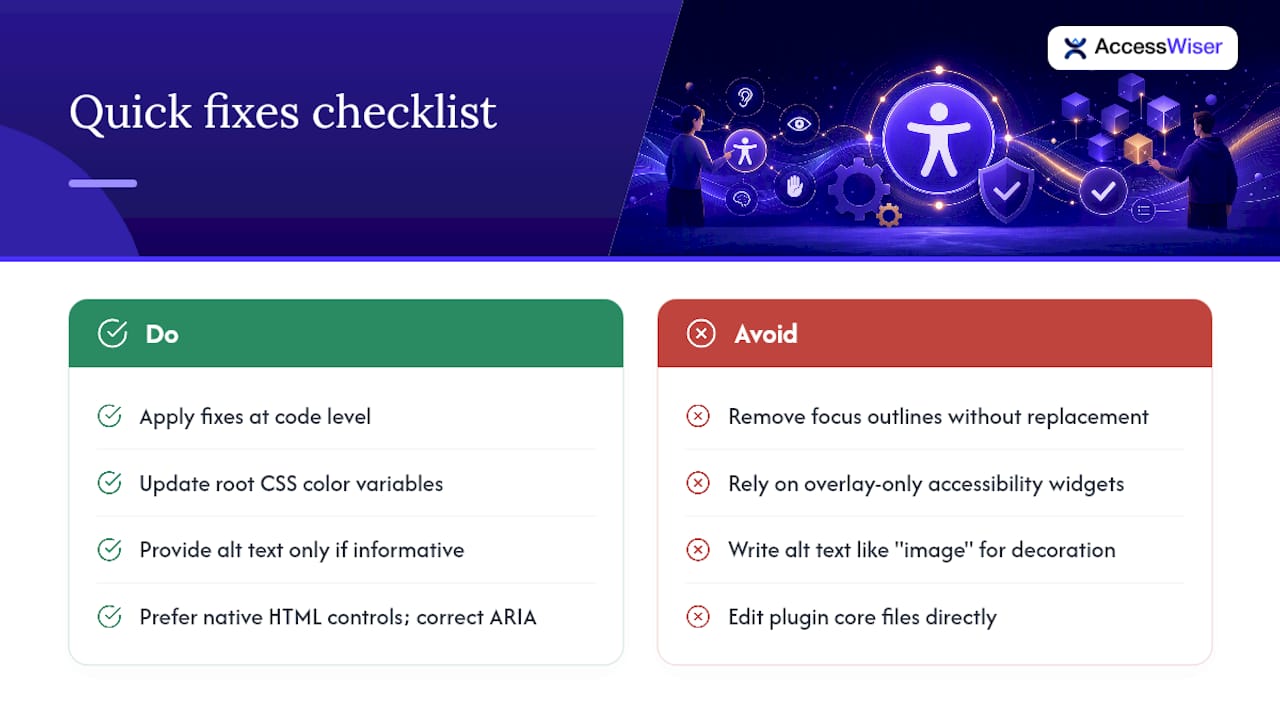
Contrast fixes usually mean adjusting your theme’s color variables rather than hunting down individual elements. If your theme uses CSS custom properties for color, update the root values once and the fix propagates everywhere. For the block editor, restrict your color palette in theme.json to combinations you’ve already tested against the 4.5:1 threshold, so editors can’t accidentally pick a failing pair.
Alt text should follow a simple rule during upload: ask whether the image adds information a sighted visitor wouldn’t otherwise get from surrounding text. If yes, describe it in one sentence. If it’s purely decorative, leave the alt field empty rather than writing “image” or “photo,” both of which just add noise for screen reader users.
Form labels and error handling need two things: a <label for="id"> tied to every input, and aria-describedby pointing to any error message so assistive tech announces it the moment focus lands on the invalid field.
<label for="email">Email address</label>
<input type="email" id="email" aria-describedby="email-error" aria-invalid="true">
<span id="email-error">Please enter a valid email address.</span>
Focus and keyboard fixes matter more under WCAG 2.2 than any prior version, since the standard added 2.4.11 Focus Not Obscured (Minimum) at Level AA, plus 2.4.12 Focus Not Obscured (Enhanced) and 2.4.13 Focus Appearance at Level AAA, to address focus visibility and sticky-header overlap. Never remove focus outlines with outline: none unless you replace them with an equally visible :focus-visible style. For sticky headers that cover anchor targets or newly focused elements, add CSS scroll margin sized to your header’s height:
:target, :focus {
  scroll-margin-top: 80px;
}
Setting scroll-padding-top on the html element to the same height is another CSS-only option. Either approach is usually simpler than JavaScript scroll offsets, but test keyboard focus in each browser you support, since support for focus-triggered scrolling varies.
For interactive components, prefer native HTML elements over recreating their behavior with <div> and ARIA. A native <button> already has keyboard support, focus handling, and correct semantics built in; a <div role="button"> needs you to manually add all three, and it’s easy to miss one. When you do need ARIA, get the state attributes right: aria-expanded="true" on a toggle button when its content is visible, false when it’s collapsed, and updated dynamically as the user interacts.
Accessibility overlays and one-click widgets change the page in the visitor’s browser after it loads. They don’t change the theme or plugin markup underneath, so the original issues remain in your source code. When you fix the code itself, the change is part of your site and is visible to the next automated scan.
When a plugin itself outputs bad markup, inspect the rendered DOM first, then override it through a child theme template or a WordPress filter hook rather than fighting the plugin’s core files directly. If a plugin can’t be fixed without forking it, that’s usually the signal to replace it with an alternative that ships accessible markup out of the box.
Choosing Themes and Plugins Without Creating New Errors
An “accessibility-ready” theme tag in the WordPress directory is a starting signal, not a guarantee. Before committing to a theme, check its actual templates: does the search results page have a heading, does the 404 page have a landmark, do post navigation links have descriptive text instead of bare “Next” and “Previous”?
Plugin governance deserves the same scrutiny. Test any new plugin on a staging site first, and specifically audit its rendered DOM, not just its settings screen. A calendar plugin might look polished in the admin panel and still output a table with zero header associations for screen readers.
Editorial policy closes the remaining gap, since even a well-built theme and plugin stack gets undermined by content habits. Accessibility is a full-stack problem spanning theme, plugins, and editorial choices together. Build a short pre-publish checklist for content authors:
-
Every image has appropriate alt text (or is intentionally marked decorative)
-
Headings follow a logical order without skipping levels
-
Link text describes the destination (“View pricing,” never “click here”)
-
Embedded video includes captions before publishing
Pro Tip: Add a scheduled automated scan, weekly or after every plugin update, so regressions surface before a visitor finds them. A theme update that quietly strips your focus outlines is a lot cheaper to fix the day it happens than three months later.
How Do You Document and Prove Accessibility Fixes?
Documentation is what turns a one-time cleanup into evidence you can actually use. Keep dated records of every scan you run, tie each finding to the specific WCAG success criterion it violates, and log the fix applied and the date it shipped.
A published accessibility statement, paired with that remediation log, gives you a clear, dated record of your accessibility work. It should note:
-
The standard you’re targeting (WCAG 2.2 AA is the current version, though some laws and policies still reference 2.1 AA)
-
Known limitations or areas still being remediated
-
How visitors can report a barrier and expect a response
Schedule automated re-checks on a recurring basis, and add a manual spot check after any theme or plugin update, since periodic audits paired with post-update testing help catch regressions before visitors do. Prioritize Level A violations first, since they represent the most severe barriers, then work through Level AA. Tracked, dated records of this process say far more about your accessibility work than a one-time badge.
AccessWiser’s Approach to WordPress Accessibility Errors
AccessWiser scans WordPress sites against WCAG 2.2 AA success criteria, with mappings to Section 508 and EN 301 549, and tie each finding to the specific element and criterion it affects. Instead of a generic “fix contrast” note, you get plain-language guidance for fixing that element in your site’s own code, so the fix lives in your code instead of in a runtime patch.
Automated checks flag programmatically detectable barriers on their own. Pairing them with scheduled re-checks means a plugin update that reintroduces a keyboard trap can be caught quickly rather than discovered by a frustrated visitor months later.
Automation still has a ceiling. Manual keyboard and screen reader testing remain necessary for judgment calls that scanners can’t make, and AccessWiser’s accessibility solutions are built around that reality rather than pretending a scan alone closes the gap. Dated scan records and an accessibility statement give you a documented history of your accessibility work.
The AccessWiser Team
Common Accessibility Errors in WordPress Video and Audio Content
Video and audio embeds are where WordPress sites lose accessibility points quietly, because the content often comes from a third-party embed (YouTube, Vimeo, a podcast player) and nobody checks what accessibility features survived the embed process.
The most common failure is missing captions. Auto-generated captions from platforms like YouTube help, but they routinely mangle names, technical terms, and homophones, so review and correct them before publishing rather than trusting the default output. Audio content, including podcast episodes embedded on a WordPress page, needs a text transcript since captions don’t apply to audio-only formats. WCAG requires captions for prerecorded video (1.2.2) and a text alternative such as a transcript for prerecorded audio (1.2.1), both at Level A, and the ADA’s effective communication guidance lists captioning among the auxiliary aids organizations may need to provide.
A second failure is audio that autoplays on page load. This disorients screen reader users mid-announcement and runs into WCAG 1.4.2 Audio Control: if audio plays automatically for more than three seconds, visitors need a way to pause or stop it, or to control its volume separately from the system volume. The simplest fix is to turn autoplay off.
Transcripts also solve a problem captions don’t: they make video and audio content searchable and skimmable, which benefits every visitor, not just those using assistive technology. If you publish video content regularly, a standing editorial rule (no video goes live without a caption file and a linked transcript) prevents this from becoming a backlog you tackle once a year.
Why Dynamic Content and ARIA Live Regions Cause Accessibility Errors
Dynamic content updates, cart totals refreshing, form validation appearing inline, notification banners sliding in, all share one problem: if the update happens purely through JavaScript manipulating the DOM, a screen reader user has no idea anything changed unless you tell it explicitly.
aria-live regions solve this by marking a container as one screen readers should monitor and announce when its content changes. The two common values are aria-live="polite", which waits for a natural pause before announcing, and aria-live="assertive", reserved for urgent updates like a failed payment. Overusing assertive is a common WordPress plugin mistake, since it interrupts whatever the user is doing, which becomes disorienting fast on a page with several dynamic widgets firing at once.
A second common error is marking a container as a live region but never actually updating its text content, just swapping a class or a CSS display property instead. Screen readers watch for content changes, not visual ones, so a purely visual toggle announces nothing.
Search-as-you-type results, “added to cart” confirmations, and comment sections that load new replies without a page refresh are the three places WordPress sites most often need live regions and most often skip them.
Language Attribute Mistakes That Break Screen Reader Pronunciation
Every WordPress page should declare its primary language in the <html lang="en"> attribute, which WordPress core sets automatically based on your site’s language setting. The problem shows up on multilingual sites or pages that mix languages, where a screen reader keeps announcing everything in the wrong voice or accent because nothing tells it the language changed mid-page.
If a paragraph, quote, or product name appears in a different language than the rest of the page, wrap it in an element with its own lang attribute:
<p>The French phrase <span lang="fr">c'est la vie</span> appears often in casual writing.</p>
Without that inline lang attribute, a screen reader set to English will try to pronounce French, Spanish, or German text using English phonetic rules, which usually turns it into gibberish for the listener.
Sites running translation plugins face a related trap: some generate separate URLs per language but forget to update the page’s root lang attribute to match the displayed content, so a Spanish page still declares itself as English. That mismatch confuses screen readers into using the wrong pronunciation engine for the entire page, not just a phrase or two.
Making Custom Widgets and Interactive Elements Accessible
Custom widgets, accordions, tabbed content, carousels, custom dropdowns, are where WordPress sites most often reinvent a wheel that HTML already built, and reinvent it worse.
An accordion built with <div> elements and JavaScript click handlers needs manually added keyboard support, correct aria-expanded states, and a logical tab order, none of which come for free the way they would with native <details> and <summary> elements. If a custom accordion is genuinely necessary, follow the WAI-ARIA Authoring Practices pattern for accordions rather than guessing at attribute names.
Tabbed interfaces need role="tablist", role="tab", and role="tabpanel" applied correctly, plus arrow-key navigation between tabs, since that’s the behavior screen reader users actually expect from a native tab pattern. Custom dropdown menus, especially mega-menus in navigation, frequently trap keyboard focus or skip menu items entirely when built without reference to an established pattern.
Carousels deserve particular caution. They’re one of the most consistently inaccessible widgets on the web: autoplay disorients screen reader users, pagination dots often lack labels, and slide content that changes automatically needs the same live-region treatment as any other dynamic update. If a carousel isn’t earning its complexity, a static layout is usually the more accessible choice anyway.
Mobile Accessibility Pitfalls in Responsive WordPress Design
Responsive design solves layout problems, not accessibility ones, and WordPress sites often assume the two are the same thing. Touch targets are the most common casualty: WCAG 2.2 Success Criterion 2.5.8 sets a 24 by 24 CSS pixel minimum at Level AA (with exceptions such as enough spacing around smaller targets), yet mobile navigation menus routinely shrink icons and links below a comfortable size once the layout switches to a mobile breakpoint.
Hidden mobile menus create a second problem. A hamburger menu that hides navigation links visually but leaves them in the DOM (and tabbable) creates a confusing experience for keyboard and screen reader users, who land on links they can’t see and have no visible context for. The fix is hiding those links from both sight and the accessibility tree simultaneously, not just visually.
Zoom and text resizing are frequently broken by a maximum-scale=1 or user-scalable=no setting in the viewport meta tag, which some WordPress themes still include to “prevent accidental zoom.” That setting actively blocks users with low vision from zooming in, and it works against WCAG 1.4.4 Resize Text, which expects text to scale up to 200 percent.
Responsive tables are their own mobile trap. A data table that collapses into stacked cards on small screens needs to preserve its header associations in that new layout, or a screen reader user loses all context for what each value represents once the visual table structure disappears.
When Should You Fix WordPress Accessibility Errors In-House vs. Hire Outside Help?
Simple content fixes (alt text, headings, contrast) on a small site fit comfortably in-house. Complex interactive features, formal audit or procurement requirements, or limited developer time point toward outside help. When vetting a vendor, ask about audit scope, remediation deliverables, proof of fixes applied, and whether they offer post-launch monitoring.
Getting Practical Help With WordPress Accessibility Errors
Fixing accessibility errors one plugin at a time works, but it’s slow, and regressions slip back in every time a theme or plugin updates. AccessWiser is built for that gap: it scans your WordPress site against WCAG 2.2 AA criteria, with Section 508 and EN 301 549 mappings, then hands you plain-language, code-level guidance instead of a vague severity score. Every finding ties back to the specific element and success criterion it violates, so your developer knows exactly what to change and why.
Beyond the initial fix, AccessWiser runs scheduled re-checks that help flag regressions when a plugin update quietly breaks something you already fixed, and keeps dated records of scans and fixes that show your ongoing accessibility work. It also includes an optional widget that lets visitors adjust contrast, text settings, and motion preferences on their end.
If you manage a WordPress site and need a documented, repeatable way to find and track these issues, start with AccessWiser’s accessibility solutions and see what a scan turns up on your own pages. A free trial is the fastest way to see your actual error list rather than guessing at it.
Useful Resources for WordPress Accessibility
-
WAI-ARIA Authoring Practices
Sources
FAQ
How Do I Fix WordPress Accessibility Issues?
Start with an automated scan to catch contrast, alt text, and label issues, then run a manual keyboard-only pass and a screen reader check to catch what automation misses, fixing each issue at the code level rather than with a runtime overlay.
Does the ADA Apply to WordPress Websites?
The ADA covers businesses that are open to the public and state and local governments, and WCAG is the technical benchmark most often used for websites. For state and local governments, the Department of Justice’s ADA Title II rule sets WCAG 2.1 AA as the standard. The platform your site runs on doesn’t change this, so a WordPress site is held to the same expectations as any other. For questions about your own situation, talk to a qualified attorney.
Why Are Some Site Owners Moving Away From WordPress Over Accessibility Concerns?
Frustration usually comes from theme and plugin sprawl introducing accessibility regressions faster than teams can catch them, not from WordPress core itself, which is built to align with WCAG 2.2 AA.
How Do I Fix General WordPress Errors That Affect Accessibility?
Most accessibility-related WordPress errors trace back to a specific plugin or theme update, so check your rendered DOM after any update, and override broken markup through a child theme or filter rather than editing plugin core files directly.
What’s the Fastest Way to Find WordPress Accessibility Errors?
Run an automated scanner like axe DevTools or Lighthouse across your key page templates first, since that surfaces contrast and labeling issues in minutes, then follow with a manual keyboard and screen reader pass for anything automation can’t judge.
Recommended
Articles on this blog are general information about web accessibility, not legal advice. Laws change and their application depends on your specific situation — for decisions with legal consequences, consult a qualified legal professional.
Articles on this blog are general information about web accessibility, not legal advice. Laws change and their application depends on your specific situation — for decisions with legal consequences, consult a qualified legal professional.