Blog · 16 min read
WCAG 2.2 Checklist for Web Teams: Audit First, 90 Day Remediation Plan

Target WCAG 2.2 Level AA. Start by validating the new A/AA success criteria, then move straight into the failures that show up on almost every audit: contrast, alternative text, and keyboard or focus problems. Run an automated scan first to surface the obvious breaks, then walk every page with a keyboard, tabbing through links, forms, and menus. That combination catches most of what blocks real users from completing real tasks.
TL;DR:
- Fix critical issues first, such as missing form labels, keyboard traps, and authentication failures, which block entire user tasks and pose legal risks.
- Address contrast and alt text errors immediately, since a majority of homepages fail these tests, requiring simple corrections with often quick fixes.
- Prioritize fixing design system components like modals and dropdowns to eliminate recurring accessibility problems across multiple pages automatically.
- Use a combined workflow of automated scans, manual keyboard and focus testing, and assistive technology checks to ensure comprehensive WCAG 2.2 compliance.
- Implement a 90-day remediation plan with clear task ownership, re-scans for regressions, and systematic updates to support ongoing accessibility efforts.
Table of Contents
- What Is the WCAG 2.2 Checklist Actually Checking?
- What Are the Nine New WCAG 2.2 Success Criteria?
- Building a Working Level AA Checklist
- How Do You Validate Each Checklist Item?
- Which Fixes Come First? A 90-Day Remediation Roadmap
- How Do You Bake WCAG 2.2 Into Your Design System?
- How AccessWiser Supports a WCAG 2.2 Program
- What Accessibility Teams Actually Do First
- Turn This Checklist Into an Automated Workflow
- Where to Verify These Standards Yourself
- Sources
What Is the WCAG 2.2 Checklist Actually Checking?
A WCAG 2.2 checklist is really a map of the Web Content Accessibility Guidelines (WCAG) 2.2, the W3C Recommendation that governs how accessible a website has to be to meet legal and usability standards in most markets. WCAG 2.2 adds nine new success criteria and removes one, 4.1.1 Parsing, which was retired because modern browsers and assistive technology no longer need it the way they did when HTML parsing errors were common. That leaves 86 total success criteria to know about, though you will not test all of them for AA conformance.
The levels break down like this, and understanding them is what keeps a checklist from turning into an unfocused list of 86 things nobody finishes:
- Level A (31 criteria): the floor. Missing these usually means some users cannot use the site at all.
- Level AA (24 additional criteria, 55 cumulative): the level referenced by most laws, contracts, and procurement standards, including the ADA and Section 508 in the United States and EN 301 549 in the EU.
- Level AAA (31 additional criteria): the ceiling. Few organizations attempt full AAA conformance because some criteria conflict with normal design or content patterns.
That 55-criteria AA total is the number that matters for a working checklist, according to the analysis in W3C officially recommends WCAG 2.2. Everything below Level AAA in this article assumes that scope.
WCAG 2.2 is backwards compatible with WCAG 2.1. A site conformant with 2.1 AA is close to 2.2 AA, not starting over. Teams already at 2.1 AA typically need to verify only six new A/AA criteria to close the gap, a targeted job that Accessibility suggests can often be finished in days rather than weeks. Adopting 2.2 now also gets ahead of policy: regulators and procurement standards tend to reference the newest published version once it stabilizes, so auditing against 2.2 today avoids a second pass later.
What Are the Nine New WCAG 2.2 Success Criteria?
Nine criteria are new to WCAG 2.2, and six of them sit at Level A or AA, which means they are the ones your compliance checklist actually has to test. The other three land at AAA and matter mostly for organizations pursuing the highest conformance tier.
- 2.4.11 Focus Not Obscured (Minimum) — AA. Test it by tabbing through the page and confirming the focused element is never fully hidden behind a sticky header, cookie banner, or chat widget.
- 2.4.12 Focus Not Obscured (Enhanced) — AAA. A stricter version requiring the focused element to be entirely unobscured, not just partially visible.
- 2.4.13 Focus Appearance — AAA. Sets minimum size and contrast requirements for the visible focus indicator itself.
- 2.5.7 Dragging Movements — AA. Test any drag interaction (sliders, reordering lists, map panning) by confirming there is a single-pointer alternative, like tap-to-select buttons instead of drag-only reordering.
- 2.5.8 Target Size (Minimum) — AA. Measure clickable targets like buttons and icons; anything smaller than 24 by 24 CSS pixels needs adequate spacing or an exception (such as inline text links).
- 3.2.6 Consistent Help — A. Check that help mechanisms (a chat link, contact page, or help menu) appear in the same relative order across pages where they exist.
- 3.3.7 Redundant Entry — A. Walk through any multi-step form and confirm information the user already entered is not asked for again unless there’s a clear reason (like re-entering a password for security).
- 3.3.8 Accessible Authentication (Minimum) — AA. Test the login flow: if it requires solving a puzzle, transcribing a CAPTCHA, or a cognitive test with no alternative, it fails.
- 3.3.9 Accessible Authentication (Enhanced) — AAA. Removes even object-recognition and personal-content-recognition exceptions that the AA version still allows.
Two criteria cause a disproportionate share of new failures: Accessible Authentication and Focus Not Obscured. Login flows built around visual puzzles or memory-based CAPTCHAs fail 3.3.8 outright, and sticky navigation bars that cover the focused element on tab are almost universal on sites that have not specifically checked for it.
Both of those criteria are worth testing before anything else on this list, because they tend to block entire user journeys rather than degrading one page. A login screen that fails Accessible Authentication doesn’t just violate a checklist item. It locks out the exact users the criterion exists to protect.
Building a Working Level AA Checklist
A checklist organized around the four WCAG principles, perceivable, operable, understandable, and robust (often shortened to POUR), maps cleanly to how QA teams already think about testing. Here’s a working version you can adapt, broken out by principle with the method that actually catches each issue.
Perceivable
Contrast and alternative text are the two most broken items on the web today. The WebAIM Million report found that a large majority of tested home pages fail contrast requirements and a significant portion fail to provide proper alternative text, with many detectable errors reported per page. Those numbers alone justify making contrast and alt text the first two rows on any audit sheet.
- Check text contrast against background: 4.5:1 for normal text, 3:1 for large text (WCAG 1.4.3). Automated tools catch most of this reliably.
- Check non-text contrast for buttons, form borders, and icons: 3:1 minimum (WCAG 1.4.11). Requires a manual pass since many scanners miss UI component contrast.
- Verify every meaningful image has descriptive alt text, and decorative images have empty alt attributes (WCAG 1.1.1). Automated tools flag missing alt text; only a human can judge whether the description is accurate.
- Confirm content reflows without horizontal scrolling at 400% zoom (WCAG 1.4.10). Manual browser testing only.
Operable
- Tab through the entire page in DOM order and confirm every interactive element is reachable and visibly focused (WCAG 2.1.1, 2.4.7). Manual, keyboard only.
- Confirm the focused element is never hidden behind sticky headers or overlays (WCAG 2.4.11). Manual.
- Measure click targets at 24x24 CSS pixels minimum, checking icon buttons and close buttons specifically (WCAG 2.5.8). Can be scripted, but spot-check visually.
- Test any drag interaction for a pointer-based alternative (WCAG 2.5.7). Manual, no automated tool can meaningfully test this.
- Confirm no keyboard traps exist, especially in modals and date pickers. Manual.
Understandable
- Confirm form fields have visible, programmatically associated labels (WCAG 1.3.1, 4.1.2). Automated tools catch missing labels; manual review catches mismatched ones.
- Check that help mechanisms appear in a consistent location and order across pages (WCAG 3.2.6). Manual site-wide review.
- Walk a multi-step form and flag any repeated data entry with no clear justification (WCAG 3.3.7). Manual.
- Test the login and account-recovery flow for cognitive-function tests without an alternative (WCAG 3.3.8). Manual.
Robust
- Run an automated scan for invalid ARIA usage, duplicate IDs, and incorrect roles (WCAG 4.1.2). Automated tools handle most of this well.
- Confirm custom components (accordions, tabs, comboboxes) expose the correct name, role, and state to assistive technology. Requires screen reader testing.
Cornell’s published WCAG 2 AA checklist is a useful reference format if you want to see how a university accessibility team structures the same items for their own site audits, and it’s a good starting template if you’re building your own tracking sheet.
A simple record format keeps findings from getting lost between the audit and the fix. Track it however fits your workflow, spreadsheet, ticketing system, or a dedicated tool, but keep the same fields:
| Field | Purpose |
|---|---|
| Criterion | Which success criterion failed (e.g., 1.4.3, 2.5.8) |
| Element | The specific component or page section affected |
| Status | Pass, fail, or needs review |
| Test method | Automated, manual, or AT-assisted |
| Owner | Who is responsible for the fix |
| Remediation ETA | Target date for the fix to ship |
| Notes | Screenshot, reproduction steps, or WCAG technique reference |
That structure turns a one-time scan into something you can actually manage across sprints, instead of a PDF nobody opens again.
How Do You Validate Each Checklist Item?
No single method catches everything, and treating an automated scan as a finished audit is the most common mistake teams make. The workflow that actually works runs in sequence: automated scan first, then prioritized manual checks, then assistive-technology (AT) scenario testing, then a stakeholder signoff before you call anything closed.
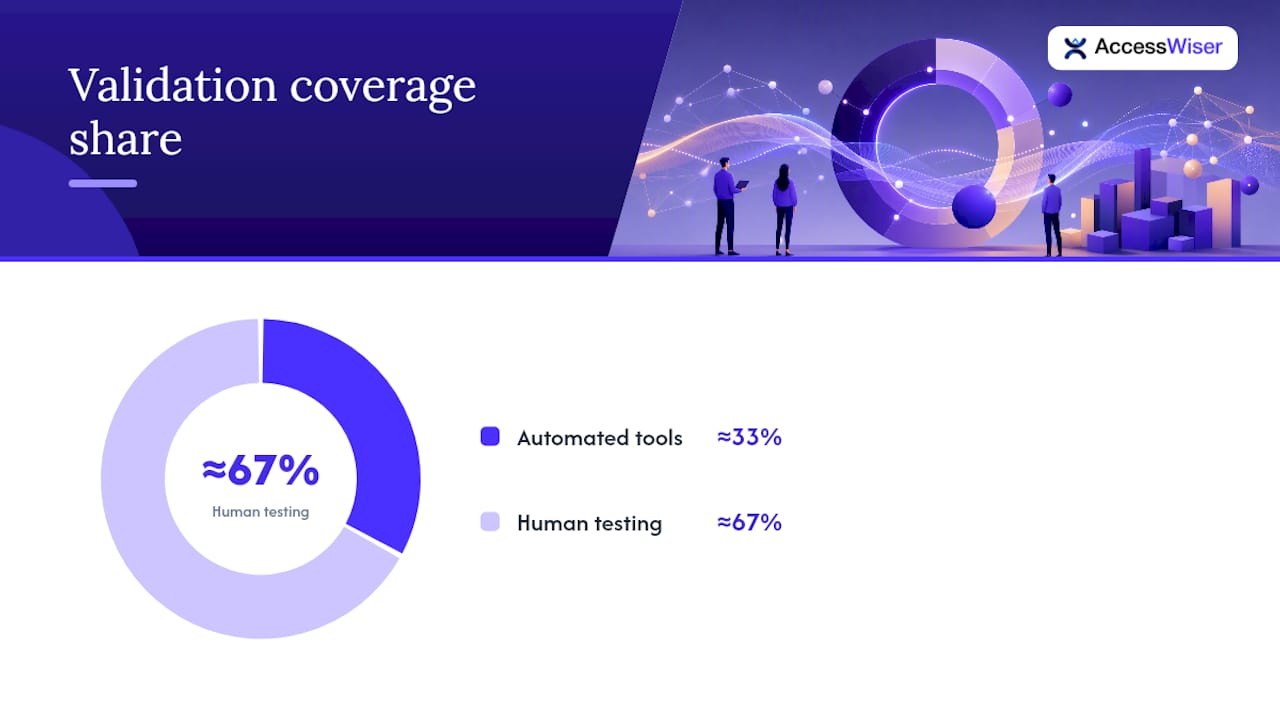
- Automated scan. Tools like axe DevTools, WAVE, or Lighthouse catch roughly a third of WCAG issues reliably, mostly contrast, missing alt attributes, missing form labels, and invalid HTML or ARIA. Run this first because it’s fast and it clears the easy issues before a human spends time on them.
- Manual keyboard testing. Unplug the mouse and tab through every page. This is the only reliable way to catch focus order problems, keyboard traps, and Focus Not Obscured failures.
- Screen reader testing. Run key user flows, checkout, sign-up, search, with NVDA on Windows or VoiceOver on Mac and iOS. Listen for whether form errors are announced, whether custom widgets are labeled, and whether headings create a sensible outline.
- Mobile touch and zoom testing. Check target sizing on an actual phone, and confirm the page reflows properly when zoomed to 200% or more in a mobile browser.
- Stakeholder signoff. Someone accountable, not just the person who ran the scan, reviews the findings log and confirms remediation priorities before work is scheduled.
Pro Tip: Run your screen reader test with your eyes closed for at least one full user flow. It sounds theatrical, but it’s the fastest way to notice when a page “sounds” broken even though it looks fine visually.
Automated tools are fast and consistent, but they cannot judge whether alt text is accurate, whether a focus order makes logical sense, or whether a CAPTCHA has a usable alternative. Those require a person. Budget for both, and don’t let a clean automated report substitute for the manual pass.
Which Fixes Come First? A 90-Day Remediation Roadmap
Not every failure carries the same risk, and treating them all as equally urgent is how remediation backlogs stall out. Sort findings into three buckets before scheduling any work.
- Critical, fix immediately. Missing form labels, keyboard traps, and Accessible Authentication failures block entire tasks for some users. These also carry the highest legal exposure since they represent a hard barrier, not a degraded experience.
- Quick wins, fix within two to four weeks. Contrast failures and missing alt text are usually simple CSS or content fixes with outsized impact given how common they are. With 83.9% of home pages failing contrast per the WebAIM Million report, this bucket alone often accounts for most of an audit’s findings.
- Structural, fix within the quarter. Target sizing, consistent help placement, and drag-alternative interactions usually require component-level changes rather than one-page patches.
A 90-day plan gives structure to that sequence without pretending everything can happen at once:
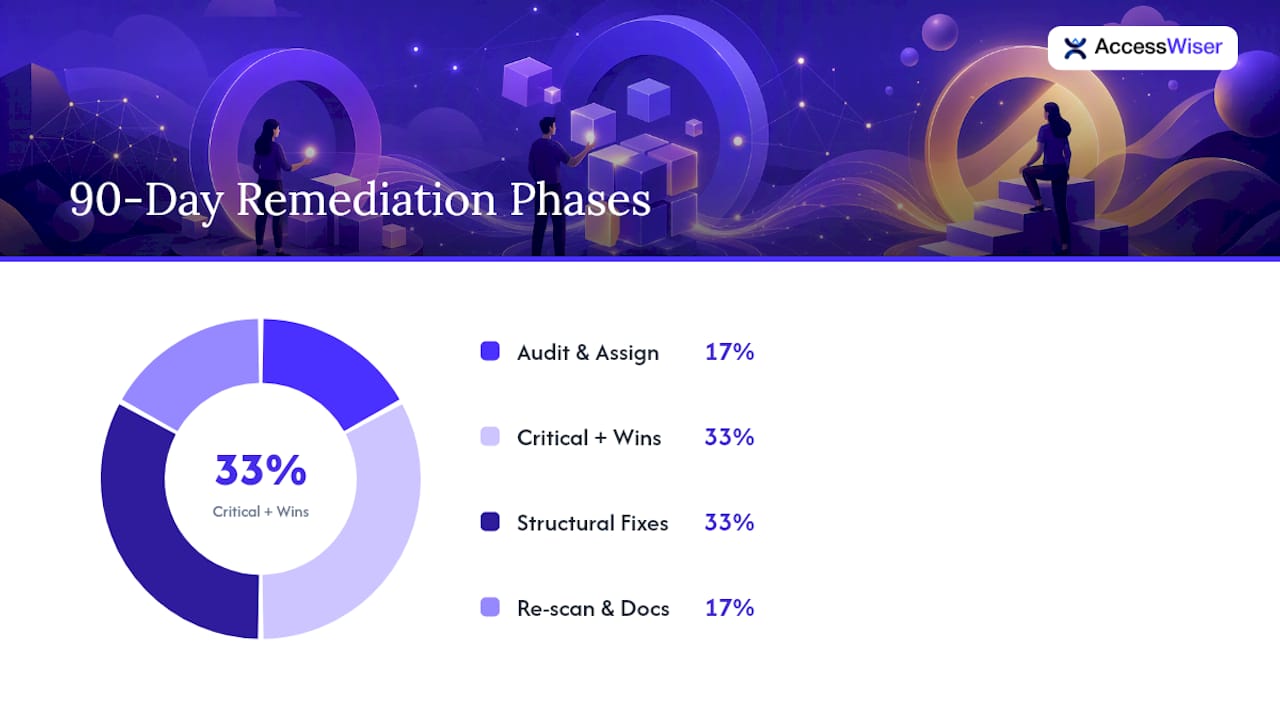
Days 1 to 15: Run the full audit, automated plus manual, and log every finding with the record format above. Assign an owner to each critical-bucket item. This phase is complete when every critical finding has an owner and a target date.
Days 16 to 45: Fix critical items first, then move into quick wins. Contrast and alt text fixes typically ship fastest because they rarely touch application logic. Re-test each fix as it ships rather than batching verification to the end.
Days 46 to 75: Address structural issues, usually inside the design system rather than page by page. This is where target sizing, focus indicator styles, and consistent help placement get solved once and applied everywhere.
Days 76 to 90: Full re-scan, AT-assisted spot checks on the highest-traffic flows, and a documentation pass, updating the accessibility statement and archiving dated scan results as evidence of the work completed.
Track progress with a simple open-versus-closed count by severity bucket, and add a regression check: re-scan monthly, not just after the 90-day push ends. Gate new pull requests with an automated accessibility check so new components don’t reopen issues you already closed. Teams that skip that gate tend to see the same contrast and label failures creep back in within a few months, because a new component shipped without the same review.
How Do You Bake WCAG 2.2 Into Your Design System?
Fixing accessibility issues one page at a time is slow and it never really finishes, because someone eventually ships a new page using the old pattern. Fixing them in the design system means every future page inherits the correction automatically.
Start with the components that generate the most repeat findings: buttons, form fields, modals, and dropdown menus. A single accessible modal component, built once with proper focus trapping, keyboard support, and ARIA roles, eliminates a whole category of findings across every page that uses it. The same logic applies to focus styles and target sizing: define them as design tokens (a minimum focus outline width, a minimum touch target size) rather than leaving each developer to reinvent them per component.
- Document the accessible version of each component with a code snippet, not just a design mockup, so developers implement it correctly the first time.
- Set contrast and spacing values as tokens in your design system rather than hard-coded hex values scattered across stylesheets.
- Add automated accessibility checks to your CI pipeline so a pull request introducing a new contrast or label failure gets flagged before merge, not after launch.
- Assign clear ownership: someone on the design system team should own accessibility regressions the same way someone owns visual consistency.
Pro Tip: If you fix a component once in the design system, audit every page that already uses it. A single dropdown fix can retroactively resolve dozens of findings across the site without touching individual pages.
This component-first approach reflects something practitioners with design-system experience notice repeatedly: most WCAG 2.2 AA gaps trace back to a handful of reusable patterns, custom dropdowns, date pickers, modals, rather than one-off content mistakes. Fix the pattern, and the fix propagates everywhere it’s used.
How AccessWiser Supports a WCAG 2.2 Program
Running this checklist manually across a large site is real work, and keeping it current as pages change is harder still. There are tools that scan websites against WCAG 2.2 AA success criteria, with mappings to Section 508 and EN 301 549, so findings translate directly into the legal and procurement frameworks your organization actually answers to.
Each identified issue can be tied to the specific element and success criterion it violates, with plain-language guidance for fixing it in your own site’s code rather than patching it at runtime. That distinction matters for the roadmap above: a code-level fix moves an item from your “quick win” bucket to genuinely closed, not just masked.
- Scheduled re-checks can catch regressions after a fix ships, closing the gap that lets old issues quietly return.
- Dated records of scans, fixes, and an accessibility statement can provide evidence of ongoing effort, supporting the documentation phase of any remediation roadmap.
- Some accessibility solutions include visitor-facing widgets that let people adjust contrast, text settings, motion, and other display preferences directly on your site.
Automated checks like these detect a substantial share of accessibility barriers, which is exactly why AccessWiser pairs them with the human and AT-assisted verification steps outlined earlier in this checklist, rather than presenting automation as the whole answer.
What Accessibility Teams Actually Do First
The teams that make real progress on WCAG 2.2 don’t start with a spreadsheet of 55 criteria. They start by asking which failures block a task entirely versus which ones degrade an experience, and they fix the blockers first. Accessible Authentication and keyboard traps get attention in week one. Contrast tweaks, however common, wait until the login flow actually works for someone using a screen reader.
The second shift worth making is architectural. Chasing individual page failures is a treadmill. Fixing the modal component, the dropdown, the form field pattern in your design system closes the same finding across every page at once, which is why shift-left thinking matters more here than in most areas of QA.
Finally, keep dated records regardless of how confident you feel about compliance. Automated scans, manual test notes, and a versioned accessibility statement do double duty: they guide your next sprint, and they document good-faith effort if anyone ever asks. Measure two things over time, average remediation time per finding and how often closed issues reappear. Both numbers tell you more about your program’s health than a single point-in-time audit score ever will.
— The AccessWiser Team
Turn This Checklist Into an Automated Workflow
Working through this checklist by hand across dozens or hundreds of pages is where most teams lose momentum, not because the criteria are unclear, but because tracking status, re-testing after fixes, and keeping records current takes ongoing effort no spreadsheet handles well. Some automated tools scan sites against WCAG 2.2 AA success criteria with Section 508 and EN 301 549 mappings built in, then provide code-level fix guidance for each finding instead of a generic error list.
Scheduled re-checks can catch regressions automatically, so a fix that shipped clean in March doesn’t quietly break again later. Each scan and remediation can get a dated record, building the documentation trail needed for ongoing accessibility compliance without manual maintenance. Explore how the scanning and remediation workflow fits your site, or start a free trial to run your first automated audit against the checklist above today.
Where to Verify These Standards Yourself
- Web Content Accessibility Guidelines (WCAG) 2.2, the full W3C Recommendation and normative text for every success criterion.
- Understanding WCAG 2.2, detailed intent, examples, and testing guidance for each criterion.
- WCAG 2.2 quick reference, a filterable view of all criteria and techniques by level.
- WebAIM Million report, the empirical data behind the contrast and alt text failure rates cited throughout this checklist.
- WCAG 2 AA Checklist (Cornell), a downloadable practical checklist format you can adapt.
- An EPUB Accessibility Checklist Built on WCAG, an example of adapting WCAG principles to a non-web content format.
Sources
- WebAIM Million report (2026)
- W3C officially recommends WCAG 2.2 (IT Accessibility @ Iowa)
- WCAG 2 AA Checklist – Accessibility Information (Cornell)
Recommended
Articles on this blog are general information about web accessibility, not legal advice. Laws change and their application depends on your specific situation — for decisions with legal consequences, consult a qualified legal professional.
Articles on this blog are general information about web accessibility, not legal advice. Laws change and their application depends on your specific situation — for decisions with legal consequences, consult a qualified legal professional.