Blog · 11 min read
10 Minute WCAG Fix: Add a Skip to Content Link

A skip to content link is a hidden or visible anchor at the top of a page that lets keyboard and screen-reader users jump straight to the main content, bypassing repeated navigation. Add one whenever your header contains a menu, search bar, or link list that stands between the user and the page’s real purpose. Done right, it satisfies WCAG Success Criterion 2.4.1: Bypass Blocks and takes about ten minutes to build.
TL;DR:
- Most sites need a skip link if they have long or complex navigation menus, filters, or sidebars that impede keyboard or assistive technology users.
- Proper implementation requires placing a focusable anchor before navigation, linking to a stable, focusable target with a clear ID, and revealing it only on focus.
- Hide skip links off-screen using CSS that preserves accessibility, such as positioning it above the visible area and revealing on focus with a short transition.
- Use clear, destination-focused wording like “Skip to main content,” and limit skip links to one or two essential targets to avoid overwhelming users.
- Regular manual testing and automated scans help ensure skip links function correctly across browsers and remain accessible after site updates.
Table of Contents
- Why Do Skip Links Matter for Accessibility?
- How Do You Add a Skip Link to Your HTML?
- What CSS Makes a Skip Link Visible and Accessible?
- How Should You Label and Structure Skip Links?
- How Do You Test a Skip Link Correctly?
- What Are the Most Common Skip Link Mistakes?
- What Do Copy-Paste Skip Link Examples Look Like?
- How Does AccessWiser Help Verify Skip Link Accessibility?
- When Should You Actually Prioritize Skip Links?
- Ready to Catch Skip Link Regressions Before They Spread?
- Where Can You Read More on This Standard?
- Sources
- FAQ
Why Do Skip Links Matter for Accessibility?
Picture a keyboard user landing on a news site with 40 navigation links before the first headline. Without a skip link, they press Tab 40 times just to reach the article. A screen magnification user scrolls through the same wall of links at 400% zoom, watching each one crawl past the screen. A screen-reader user hears every menu item announced before the page’s actual content starts. Skip links solve all three problems with a single anchor.
That is exactly what WCAG 2.4.1 Bypass Blocks asks for: a mechanism to bypass blocks of content repeated across multiple pages. It’s a Level A requirement, meaning it sits at the baseline for legal and practical accessibility compliance, not an advanced nicety. Technique G1 is the W3C’s documented method for meeting it: a link at the top of the page that jumps directly to the main content area.
A skip link isn’t always the only answer. Sites with clean, minimal navigation and well-structured ARIA landmarks can sometimes rely on those landmarks alone, since screen-reader users can navigate by region. But:
- Sighted keyboard users get no benefit from landmarks, since screen readers are the only assistive technology that exposes them.
- Long or nested navigation menus almost always need an explicit skip link regardless of landmark structure.
- Pages with filters, sidebars, or promotional blocks before the main content benefit from a skip link even when landmarks exist.
How Do You Add a Skip Link to Your HTML?
The markup itself is short. Place the link as the very first focusable element in the document, before the logo, before the search bar, before anything else in the header.
<a href="#main" class="skip-link">Skip to main content</a>
...
<main id="main">
  <h1>Page Title</h1>
</main>
That’s the whole pattern: an anchor with an href pointing to an ID on your <main> element. Three placement rules keep it working correctly:
- The link must appear before the navigation in the DOM order, not just visually, since screen readers and keyboard focus follow source order, not CSS position.
- The target needs a stable
idattribute, and if the target isn’t a naturally focusable element like<main>, addtabindex="-1"so it can receive keyboard focus programmatically. - Native elements like
<main>,<h1>, and<div>aren’t focusable by default in some browsers, which is why G1 recommends thetabindex="-1"fallback whenever focus behavior seems inconsistent.
Some layouts need more than one jump target. An e-commerce page with a persistent filter sidebar might offer “Skip to results” in addition to “Skip to main content.” A page with a long comment thread below an article might add “Skip to comments.” Each additional anchor works exactly the same way: a link, an ID, and a focus target. Technique G123 covers this pattern for repeated content blocks, where you add a link at the start of a block that jumps to its end rather than to a different section entirely.
What CSS Makes a Skip Link Visible and Accessible?
Never hide a skip link with display: none or visibility: hidden. Both properties remove the element from the accessibility tree, which means screen readers skip right past it. Your skip link disappears for the exact users it was built for. WebAIM is explicit on this point: hide the link off-screen instead, and reveal it on focus.
.skip-link {
  position: absolute;
  top: -40px;
  left: 0;
  background: #000;
  color: #fff;
  padding: 8px 16px;
  z-index: 100;
  transition: top 0.2s ease-in-out;
}

.skip-link:focus {
  top: 0;
}
This positions the link off-screen using top, then pulls it into view on :focus. Add :focus-visible styling with a strong outline and enough color contrast to meet WCAG contrast ratios, since a barely visible focus indicator defeats the purpose. Keep the transition short, under 300 milliseconds, so the link doesn’t feel sluggish on mobile devices where focus can shift quickly between touch targets.
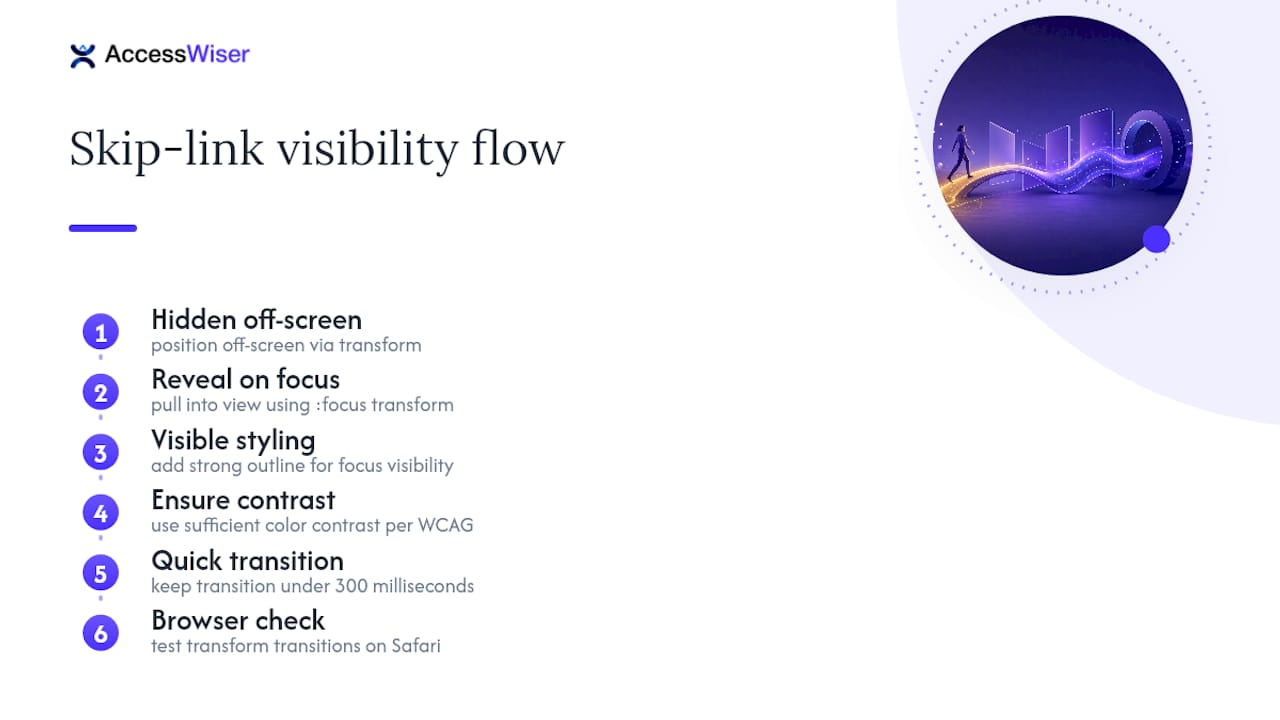
Pro Tip: Test your skip link’s transform-based positioning on Safari specifically. Older WebKit versions handle top and transform transitions differently than Chromium browsers, and a skip link that snaps into view instantly is still accessible, just less polished.
How Should You Label and Structure Skip Links?
Wording matters more than most developers assume. “Skip to main content” beats “Skip navigation” because it names the destination instead of describing what gets bypassed. Per WebAIM’s implementation guidance, users benefit more from knowing where they’re going than from knowing what they’re avoiding.
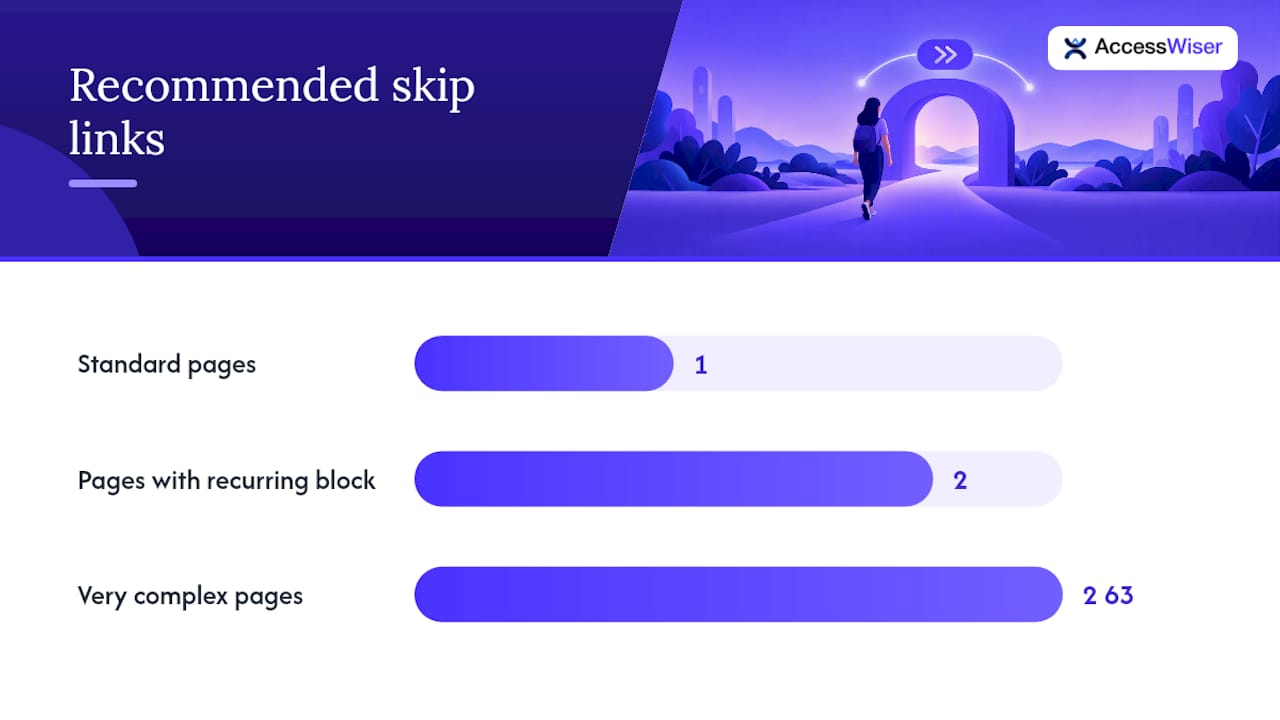
Keep the list of skip targets short. One link covers the vast majority of sites. A second or third link only earns its place on pages with genuinely distinct sections a user would want to jump between directly, like a filter panel on a product listing page or a jump-to-comments link on a long article.
- Use one clear, destination-focused skip link on standard pages.
- Add a second skip target only for a specific recurring block, like filters or search results.
- Pair skip links with proper ARIA landmarks (
<nav>,<main>,<aside>) so screen-reader users who navigate by region get a second way to move through the page. - Avoid stacking more than two or three skip links, since a wall of jump options creates its own navigation burden.
Landmarks and skip links aren’t competing solutions. A well-labeled <nav aria-label="Primary"> next to a working skip link gives screen-reader users a choice of method and gives keyboard-only users the option they actually need.
How Do You Test a Skip Link Correctly?
A skip link that looks right in the browser inspector can still fail in practice. Run through these checks before calling it done:
- Load the page and press Tab once. The skip link should be the first thing that receives focus, and it should become visible immediately.
- Press Enter or Space to activate the link, then press Tab again. Focus should land inside or right after the main content, not snap back to the top of the page.
- Turn on a screen reader (NVDA, JAWS, or VoiceOver) and repeat the same steps. Confirm the link is announced clearly and that the reading position actually moves to the main content region after activation.
- Run an automated accessibility scan to catch missing IDs, broken hrefs, or elements hidden from assistive technology, but don’t stop there. Automated checks reliably catch structural failures like a missing
idtarget, but they cannot confirm that focus visibly lands where a sighted keyboard user expects, or that a screen reader announces the jump clearly. That verification still needs a human tester. - Check behavior across browsers. Focus and announcement edge cases for skip links have shown up in real bug reports, including documented issues in the Chromium tracker, so don’t assume Chrome behavior matches Firefox or Safari.
For a fast WCAG sanity check, confirm the link is present, is the first focusable element, has visible focus styling, and moves focus to a legitimate content region. The W3C’s easy checks guidance walks through this exact sequence for quick manual verification.
What Are the Most Common Skip Link Mistakes?
Most skip link failures come from a handful of repeat offenders:
- Hidden from assistive technology entirely. Using
display: none,visibility: hidden, or removing the link from the DOM makes it invisible to screen readers, not just sighted users. - Broken or missing target. The
hrefpoints to an ID that doesn’t exist, was renamed during a redesign, or got removed when a component was refactored. - Target isn’t focusable. The destination element has an ID but no
tabindex="-1", so focus doesn’t actually move there even though the page scrolls. - Visual jump without focus movement. The page scrolls to the right spot, but keyboard focus stays wherever it was, so the next Tab press returns the user to navigation instead of continuing into main content.
Each of these tends to reappear after a redesign or a component library swap, which is exactly why a one-time fix isn’t the end of the job.
What Do Copy-Paste Skip Link Examples Look Like?
Three patterns cover almost every layout:
- Simple page: one skip link, one
<main id="main">target, revealed on focus with the CSS pattern above. This covers blogs, marketing pages, and most small business sites. - Filter-heavy page: add a second link, “Skip to results,” targeting a
<div id="results" tabindex="-1">placed after the filter sidebar, for product listings and search interfaces. - Multiple skip links: group several jump options inside a
<nav aria-label="Skip links">, revealed together with:focus-withinso the whole group appears when any link inside it gains focus. Since:focus-withinsupport varies slightly across older browsers, keep each link independently focusable as a fallback so nothing depends on that one property.
How Does AccessWiser Help Verify Skip Link Accessibility?
Skip links break quietly, usually after a template update nobody flagged for review. AccessWiser scans sites against WCAG 2.2 AA and maps failures like missing bypass mechanisms directly to criterion 2.4.1, naming the exact element involved. Every finding ships with plain-language code fix guidance, and scheduled re-checks catch regressions with dated records you can point to later.
When Should You Actually Prioritize Skip Links?
Add a skip link as one of the first accessibility fixes on any site with repeated navigation. It’s cheap, fast, and immediately useful. But treat it as a starting point, not a finish line. Complex apps still need a full semantic navigation audit, and regular scans keep the fix from quietly breaking later.
— The AccessWiser Team
Ready to Catch Skip Link Regressions Before They Spread?
Manual testing catches a skip link failure once. It won’t catch the next one your team introduces during a template refresh six months from now. AccessWiser scans your site against WCAG 2.2 AA, Section 508, and EN 301 549, flags exactly which element is missing a bypass mechanism, and hands your developers plain-language code fixes instead of a vague severity score. Scheduled re-checks then keep watching for the moment a redesign quietly removes that tabindex or wraps your skip link in display: none again.
Plans start with Starter at $24 per month, scaling up through Basic, Pro, and Business as your site grows, with the full pricing breakdown laid out for whichever tier fits your page count. Run an initial scan, see what your current skip link setup is actually doing for keyboard and screen-reader users, and fix what’s broken before it shows up in an audit.
Where Can You Read More on This Standard?
For the normative source material, start with WCAG 2.4.1 Bypass Blocks, Technique G1, and WebAIM’s skip navigation guidance. Clear heading structure also reinforces skip link destinations, a point covered well in PromptChief’s heading structure guidance.
Sources
- Skip Navigation Links | WebAIM
- G1: Adding a link at the top of each page that goes directly to the main content area
FAQ
How Do You Implement Skip to Main Content?
Add an anchor link as the first focusable element in your page, pointing to an id on your main content container, such as <a href="#main">Skip to main content</a> paired with <main id="main">. Hide it off-screen with CSS and reveal it on :focus, following the pattern documented in Technique G1.
What Is the Difference Between an Anchor Tag and a Link Tag?
An anchor tag (<a href="#id">) creates a clickable, focusable jump point inside the page content that users can Tab to and activate. A <link> tag lives in the document <head> and defines relationships like stylesheets or icons; it’s never focusable and can’t serve as a skip link.
Why Do You See “Skip to Main Content” on Websites?
That text is a skip link, added so keyboard and screen-reader users can bypass repeated navigation and jump straight to the page’s primary content. It’s usually hidden visually until a user tabs to it, which is why sighted mouse users rarely notice it exists.
How Do You Create Jump Links in HTML?
Jump links use an anchor’s href set to # followed by a target element’s id, like <a href="#section2">Jump to Section 2</a> linking to <div id="section2">. For accessibility, make sure the target can receive keyboard focus by adding tabindex="-1" if it isn’t a naturally focusable element.
Does AccessWiser Check for Missing Skip Links?
Yes. AccessWiser scans pages against WCAG 2.2 AA, including Bypass Blocks, and flags missing or broken skip link implementations with the specific element involved and plain-language fix guidance. Current plans and pricing are listed on AccessWiser’s pricing page.
Articles on this blog are general information about web accessibility, not legal advice. Laws change and their application depends on your specific situation — for decisions with legal consequences, consult a qualified legal professional.
Articles on this blog are general information about web accessibility, not legal advice. Laws change and their application depends on your specific situation — for decisions with legal consequences, consult a qualified legal professional.