Blog · 15 min read
Fix PDF Accessibility for Dev Teams With Exact Code Changes

Here, “pdf accessibility” refers to web accessibility scanning and code-level remediation: automated checks against WCAG 2.2 AA success criteria, mapped to Section 508 and EN 301 549, followed by developer fixes and scheduled monitoring. The immediate next step is straightforward. Run a full scan, triage what it flags by severity and reach, fix the code directly, then set a re-check cadence so regressions get caught before they become legal exposure. An effective accessibility tool supports exactly that workflow.
TL;DR:
- Automated scans effectively flag common issues, but manual testing remains essential for verifying content descriptions and dynamic interactions.
- Fixes should focus on code-level corrections, such as adding alt text, replacing divs with semantic buttons, and ensuring focus visibility to meet WCAG 2.2 AA.
- Prioritize fixes based on exposure, severity, and frequency, and document each change with dates and exact references to ensure audit readiness.
- Re-scan frequency should align with deployment cycles, with immediate testing after major updates to prevent regressions and legal risks.
- Visitor-facing accessibility widgets help users temporarily but are not substitutes for underlying code fixes and comprehensive remediation efforts.
Table of Contents
- What Do WCAG 2.2 AA, Section 508, and EN 301 549 Actually Require?
- How Do Automated Accessibility Scanners Work, and Where Do They Fall Short?
- What Code Changes Fix the Issues a Scanner Flags?
- How Do You Prioritize and Sequence Accessibility Fixes?
- How Often Should You Re-Scan and What Should You Document?
- When Should You Use a Visitor-Facing Accessibility Widget?
- What Makes a PDF Inaccessible in the First Place?
- How Do You Build an Accessible PDF From the Source Document?
- How Do Screen Readers and Keyboard Users Navigate PDFs?
- Which Tools Actually Verify and Fix PDF Accessibility?
- What Legal Risk Comes From Inaccessible PDFs?
- Why Permanent Fixes and Real Records Beat Quick Patches
- Ready to Run Your First WCAG 2.2 AA Scan?
- Sources
- FAQ
What Do WCAG 2.2 AA, Section 508, and EN 301 549 Actually Require?
WCAG 2.2 organizes accessibility requirements into three conformance levels: A, AA, and AAA. Each level adds stricter, testable success criteria that procurement teams, regulators, and auditors can check one by one rather than debate in the abstract. Level AA is the practical target for almost every organization, since it’s the threshold named in most regulations and vendor contracts.
The Revised Section 508 rule requires federal electronic content to meet Level A and AA success criteria, with specific carve-outs for certain non-web documents and legacy formats. That distinction between “web content” and “document” matters more than most teams realize. It shapes exactly which pages and file types your scan needs to cover and which fall under separate handling.
EN 301 549, the European standard, aligns its web clauses with WCAG 2.2 directly and adds informative guidance for non-web software and hardware. If you’re building for a global audience, meeting WCAG 2.2 AA gets you most of the way toward both frameworks at once.
Scanners commonly flag these WCAG 2.2 criteria:
- 1.4.3 Contrast (Minimum): text and background colors fail the 4.5:1 ratio.
- 2.1.1 Keyboard: interactive elements aren’t reachable without a mouse.
- 2.4.11 Focus Not Obscured (Minimum): a sticky header or modal hides the focused element.
- 1.1.1 Non-text Content: images missing meaningful alt attributes.
- 4.1.2 Name, Role, Value: custom components lacking accessible names.
How Do Automated Accessibility Scanners Work, and Where Do They Fall Short?
Scanners parse the rendered DOM, compute contrast ratios from actual pixel colors, check ARIA roles against their expected patterns, and flag missing required attributes like alt, label, or aria-required. This catches a real and substantial share of structural failures with no human involved.
It doesn’t catch everything. A scanner can confirm an image has alt text; it can’t confirm that alt text actually describes the image correctly. It can see that a custom dropdown has role="listbox", but it can’t tell you whether arrow-key navigation inside that widget actually works. Content behind a login wall, multistep forms, and anything rendered only after a user interaction are frequent blind spots.
That gap is why manual verification stays part of the job:
- Keyboard-only walkthrough of every primary user flow, tab order included.
- Screen reader pass with VoiceOver or NVDA on your core pages and forms.
- Task completion test where someone attempts checkout, sign-up, or search without a mouse.
- Dynamic content review for anything that updates without a page reload.
Pro Tip: Run your automated scan first, then hand the top three flagged pages to a screen reader test before you fix anything. You’ll often find the scanner missed a bigger problem right next to the one it caught.
Automated tool ecosystems, as the WAI evaluation tools list shows, have matured into a broad category covering scanning, remediation tracking, and dashboards. None of them replace the eyes and hands of an actual assistive technology user.
What Code Changes Fix the Issues a Scanner Flags?
A finding is only useful if it tells you what to change. Here’s how common flags translate into actual code:
- Missing alt text (1.1.1): replace
<img src="chart.png">with<img src="chart.png" alt="Quarterly revenue up 14% year over year">. Test by reading it aloud, does it convey the same information a sighted user gets? - Div-as-button (4.1.2): swap
<div> for<button type="submit">Submit</button>. Native elements carry keyboard support and accessible names for free. - Misused ARIA:
<span role="button">withouttabindex="0"and a keydown handler is worse than no ARIA at all, since it announces a role the element can’t actually perform. Either add the missing keyboard behavior or use a real<button>. - Focus obscured (2.4.11/2.4.12): a fixed header covering a focused link fails WCAG 2.2’s newest focus criteria, added specifically to catch this pattern. Fix it with
scroll-margin-topor by adjustingz-indexso focused elements stay visible. - Contrast (1.4.x): a gray-on-white button at 3.2:1 needs a darker shade to clear 4.5:1; check it with any contrast calculator before shipping.
Roughly a fifth of all WCAG success criteria touch either keyboard interaction or visual focus, which is exactly why WCAG 2.2’s three new focus criteria carry outsized weight in remediation planning.
Single-page apps need extra care. Route changes should move focus to the new content’s heading, and aria-live regions should announce dynamic updates like cart totals or form errors. Good remediation guidance points to the exact DOM node a scanner flagged, so a developer isn’t left guessing which of forty buttons on a page actually failed.
How Do You Prioritize and Sequence Accessibility Fixes?
Not every finding deserves the same urgency. Triage by three factors: exposure, severity, and frequency.
- Exposure: a checkout page failure outranks an internal admin panel issue every time.
- Severity: a keyboard trap that blocks task completion outranks a missing
langattribute. - Frequency: a broken component used in your site-wide navigation outranks a one-off issue on a single blog post.
Combine those three into a simple workflow:
- Run the scan.
- Tag each finding with its WCAG success criterion and DOM reference.
- Assign an owner and a sprint.
- Implement the code fix.
- Manually verify with keyboard or screen reader.
- Schedule a re-check to confirm the fix holds.
Keep dated scan reports and a remediation log tied to each fix. When an audit or a demand letter arrives, a paper trail showing steady progress carries far more weight than a clean scan taken the day before.
How Often Should You Re-Scan and What Should You Document?
Re-check cadence depends on how often your site changes. A high-traffic site pushing weekly releases needs weekly scans; a stable brochure site can usually get by on a monthly or quarterly rhythm. Match the schedule to your deployment frequency, not the calendar.
Keep these records on hand:
- Dated scan reports, ideally exported and archived, not just viewed once on a dashboard.
- A remediation change log tying each fix to its WCAG criterion and the commit that resolved it.
- Manual test notes from keyboard and screen reader passes.
- Version history for your accessibility statement.
WCAG guidance recommends listing the specific technologies and user agents you tested against, along with a dated summary of which success criteria you meet. That level of detail turns a vague claim of “we care about accessibility” into something an auditor can actually verify.
When Should You Use a Visitor-Facing Accessibility Widget?
A widget lets visitors adjust contrast themes, resize text, apply color vision filters, reduce motion, or trigger text-to-speech on the spot. That’s real, immediate value for someone who needs it right now, on the page they’re already viewing.
It’s not a substitute for fixing your code. A widget that boosts contrast doesn’t fix a button with no accessible name, and it can’t add keyboard support to a broken custom dropdown.
Pro Tip: Test the widget itself with a keyboard and screen reader before you ship it. A visitor tool that isn’t accessible defeats its own purpose.
Run the widget alongside your remediation plan, not instead of it.
What Makes a PDF Inaccessible in the First Place?
Most PDF accessibility problems trace back to the same root cause: the document was built for print, not for a screen reader. A well-tagged PDF carries an internal structure tree that mirrors a webpage’s heading hierarchy, list markup, and table relationships. Strip that tagging out, and a screen reader has nothing to announce beyond a flat stream of characters.
Reading order is the barrier that trips up the most documents. A PDF exported from a multi-column layout or a design tool with overlapping text boxes often reads left to right, top to bottom, regardless of how the content is actually meant to flow. A screen reader user hears sidebar captions jammed between paragraphs, sentences interrupted by page numbers, and headers that repeat mid-thought.
Other recurring barriers include:
- Missing alternative text on charts, photos, and scanned images, so a screen reader either skips them or announces a meaningless file name.
- Untagged tables where header cells aren’t associated with their data, making a screen reader recite numbers with no context.
- Scanned image PDFs with no underlying text layer at all, so the “document” is really just a picture no assistive technology can parse.
- Form fields without labels, leaving a screen reader user guessing what a blank box is even asking for.
- Missing document language and title metadata, which affects how a screen reader pronounces content and how the file appears in a browser tab.
How Do You Build an Accessible PDF From the Source Document?
The fix almost always starts upstream, in the word processor or design tool, not in the PDF itself — as explained in this e signature document guide to fast signing. Trying to repair a PDF’s structure after export is possible but far more tedious than getting the source document right first.
In Microsoft Word, apply real heading styles (Heading 1, Heading 2) instead of just bolding and enlarging text. Word uses those styles to build the tagged structure that carries over into the PDF. Add alt text to every image through the format pane, use Word’s built-in table tool rather than a grid of tabbed spaces, and set the document language in the review settings before exporting. When saving, choose “Save as PDF” with the “Document structure tags for accessibility” option checked, not a flattened print-to-PDF path that discards tagging entirely.
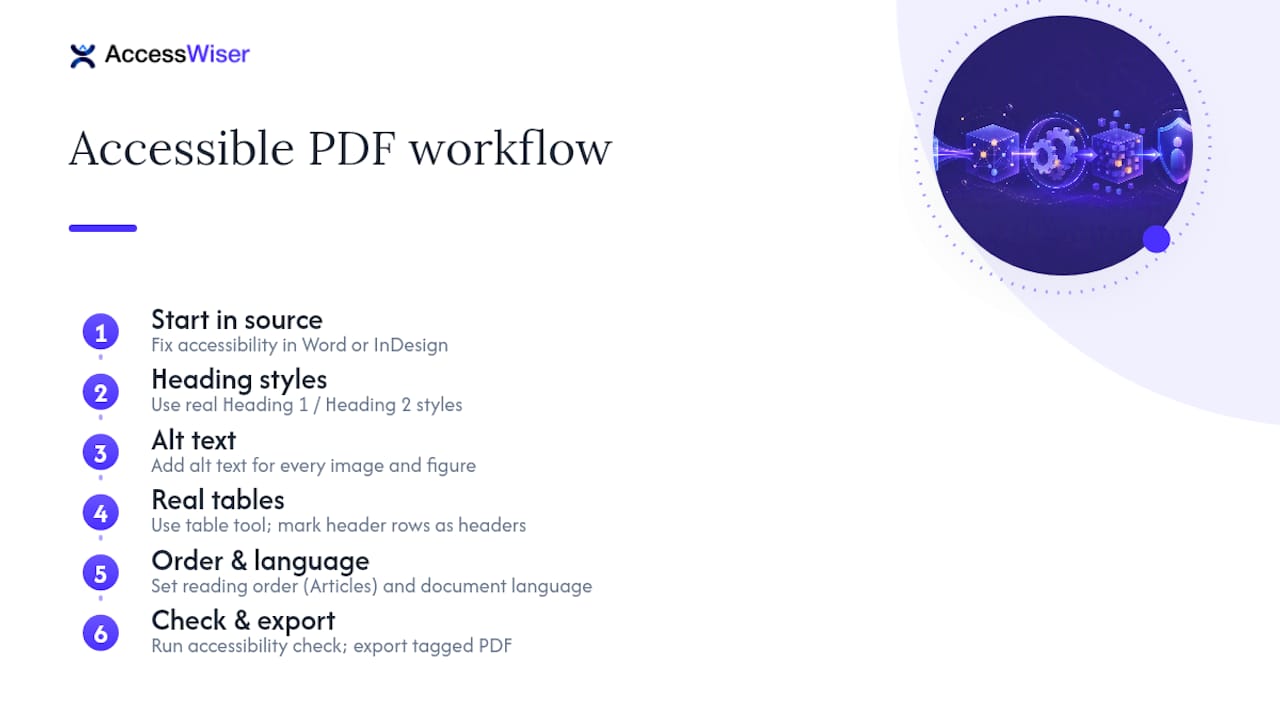
In Adobe InDesign, the same principle applies at a more granular level. Assign paragraph styles a matching export tag in the Articles panel, set a defined reading order by adding content to the Articles panel in the correct sequence, and add alt text through Object Export Options for every image and figure. Tables need real header rows marked as such, not just bold formatting.
Whichever tool you use, run the accessibility check before export, not after. Catching a missing heading structure in Word takes thirty seconds; finding it in a finished PDF means going back to the source anyway.
How Do Screen Readers and Keyboard Users Navigate PDFs?
A properly tagged PDF lets a screen reader treat it almost like a webpage. Users jump between headings with a single keystroke, skip to the next table, or list document links without listening to the whole file top to bottom. Strip the tags out, and none of that navigation exists. The screen reader falls back to reading every character in whatever order the underlying content stream happens to store it, which is often not the visual order at all.
Keyboard navigation matters just as much for interactive PDFs. Fillable forms need a logical tab order that moves through fields the way a sighted user would read them, not the order in which the fields happen to have been drawn in the design tool. Every form field needs a programmatic label, not just placeholder text that vanishes the moment a user starts typing. Buttons embedded in a PDF, like a “submit” or “print” control, need to be reachable and operable without a mouse, exactly the same standard applied to a website button.
Bookmarks matter more in PDFs than most authors realize. A long report with a bookmark panel that mirrors its heading structure lets both sighted and screen reader users jump to a specific section instantly, instead of scrolling or listening through forty pages to find it.
Which Tools Actually Verify and Fix PDF Accessibility?
Adobe Acrobat Pro’s built-in accessibility checker remains the standard first pass. It flags missing tags, untagged tables, and reading-order problems, and its Tags panel lets you manually reorder the structure tree without re-exporting from the source. The “Autotag” feature gives a reasonable starting structure for a document that was exported without any tagging at all, though it rarely gets complex tables or multi-column layouts fully right on the first try.
For validation and deeper testing, the PDF Accessibility Checker (PAC) from the Access for All foundation checks conformance against the PDF/UA standard, which is the ISO specification most closely aligned with tagged, screen-reader-friendly PDFs. It’s free and widely used by compliance teams specifically because it gives a pass/fail readout against a recognized standard rather than a vague accessibility score.
Beyond automated tools, the same manual discipline that applies to websites applies here: open the PDF with NVDA or VoiceOver running and actually listen to it. No checker fully substitutes for hearing the document the way a real user will.
What Legal Risk Comes From Inaccessible PDFs?
Inaccessible PDFs carry the same legal exposure as inaccessible web pages, and in some cases more, because a PDF is often the exact document at the center of a dispute: a lease, a syllabus, a menu, a government form. Title III of the Americans with Disabilities Act has been the basis for a steady stream of demand letters and lawsuits naming PDF inaccessibility specifically, often after a plaintiff couldn’t complete a form or read a policy document with a screen reader.
Federal agencies and their contractors carry direct Section 508 obligations for electronic documents, with the exceptions for certain non-web materials noted earlier. State and local governments face parallel requirements. Higher education institutions have been named in a wave of complaints tied specifically to inaccessible syllabi, course readings, and financial aid forms distributed as PDFs.
The financial exposure isn’t limited to settlement costs. Remediation done under legal pressure, on a deadline, with a lawyer watching, costs measurably more than the same fixes made proactively as part of a normal content workflow. A dated record showing consistent PDF and web remediation efforts over time is one of the strongest pieces of evidence an organization can produce if a complaint does arrive.
Why Permanent Fixes and Real Records Beat Quick Patches
The accessibility tooling market has too many shortcuts marketed as solutions: overlay widgets sold as a complete fix, one-time audits treated as permanent proof of compliance. Neither holds up under real scrutiny, and neither actually helps someone to use a screen reader if the underlying code never changes.
What we’d argue actually works is unglamorous: fix the code, verify the fix by hand, re-check on a schedule, and write down what you did and when. That combination is what AccessWiser builds around, plain-language guidance tied to the exact element a scan flagged, so a developer fixes it once instead of patching around it forever, paired with dated records that hold up when a compliance officer or a plaintiff’s attorney asks for evidence.
— The AccessWiser Team
Ready to Run Your First WCAG 2.2 AA Scan?
Some accessibility scanning tools provide scans mapped to WCAG 2.2 AA, with Section 508 and EN 301 549 cross-references, and findings tied to specific elements with plain-language guidance for developers.
Beyond the initial scan, AccessWiser’s solutions include scheduled re-checks that catch regressions after a redesign or a new feature ships, plus an optional visitor-facing widget for contrast, text sizing, and motion preferences. Every scan and fix gets a dated record, and you can review exactly what that includes on the accessibility statement page.
Plans start at $24 a month for Starter, scaling up to Basic, Pro, and custom Business tiers depending on how many pages you’re monitoring. Run a scan on your own site this week and see exactly what a real WCAG 2.2 AA report looks like.
Sources
FAQ
What Does “PDF Accessibility” Mean in This Guide?
Here, it refers to web accessibility scanning and code-level remediation against WCAG 2.2 AA, mapped to Section 508 and EN 301 549. It covers automated checks, developer fixes tied to specific elements, and ongoing monitoring rather than document tagging workflows.
Is WCAG 2.2 AA Legally Required?
Yes, in specific contexts. The Revised Section 508 rule requires it for federal electronic content, and it’s the de facto benchmark referenced in most ADA-related litigation and EN 301 549 compliance in Europe.
Can an Automated Scanner Fully Confirm Accessibility Compliance?
No. Scanners like those cataloged by the W3C’s WAI tools list catch a substantial share of code-level issues, but contextual problems like inaccurate alt text or broken screen reader workflows need manual testing to confirm.
How Much Does AccessWiser Cost?
AccessWiser’s plans begin at $24 a month for Starter, with Basic at $49 and Pro at $119 monthly; Business pricing is custom. Full details and extra scan add-ons are listed on the pricing page.
How Often Should a Website Be Re-Scanned for Accessibility?
Match the cadence to how often the site changes: weekly for sites with frequent releases, monthly or quarterly for stable sites. Any redesign, new feature, or third-party widget update should trigger an immediate re-check regardless of schedule.
Recommended
Articles on this blog are general information about web accessibility, not legal advice. Laws change and their application depends on your specific situation — for decisions with legal consequences, consult a qualified legal professional.
Articles on this blog are general information about web accessibility, not legal advice. Laws change and their application depends on your specific situation — for decisions with legal consequences, consult a qualified legal professional.