Blog · 13 min read
Developers: Solve CAPTCHA Accessibility With 6 WCAG Options

Do not rely on image or puzzle CAPTCHAs as the only way for people to reach your forms. If you must use one, provide a text alternative plus a second option in a different modality, and treat that pairing as the floor set by WCAG 1.1.1 and the Accessible Authentication criteria. Start by auditing every gated form on your site and reducing how often challenges appear for logged-in or low-risk visitors.
TL;DR:
- Providing only visual CAPTCHAs excludes users with low vision, color deficiencies, or dyslexia, unless combined with text descriptions and alternative modalities.
- Audio CAPTCHAs often present higher difficulty than visual challenges and fail for users with hearing impairments or in noisy environments.
- Accessible verification requires a text explanation and a second challenge in a different modality, with full keyboard operability and ARIA live updates.
- Non-interactive bot prevention methods like honeypots, rate limiting, and behavioral checks reduce dependence on challenging CAPTCHAs and improve accessibility.
- Regular testing with actual assistive technologies and ongoing re-checks after updates are essential to maintain CAPTCHA accessibility compliance.
Table of Contents
- Why CAPTCHA Accessibility Is Still a Real Problem
- What WCAG and Section 508 Actually Require for CAPTCHA Use
- Accessible Alternatives That Still Stop Bots
- Building an Accessible CAPTCHA Strategy: A Practical Checklist
- Testing and Auditing Your CAPTCHA for Real Accessibility
- Fixing the Most Common CAPTCHA Accessibility Failures
- Author Perspective: What Teams Get Wrong About CAPTCHA Trade-Offs
- Sources
Why CAPTCHA Accessibility Is Still a Real Problem
CAPTCHAs were built to stop bots, and they mostly succeed at that. The trouble is they screen out real people along the way, and the exclusion follows predictable lines depending on which sense or skill the challenge assumes everyone has.
Distorted-text CAPTCHAs assume sharp vision and intact contrast perception, which rules out people with low vision, color vision deficiencies, and some forms of dyslexia. Image-grid challenges, the “select all squares with a traffic light” type, ask users to make fast visual judgments under time pressure, a task that’s exhausting or impossible for people with cognitive disabilities and unusable for screen reader users entirely. Drag-and-drop puzzle CAPTCHAs assume fine motor control and a mouse, leaving out people who navigate by keyboard, switch device, or voice command. Audio CAPTCHAs, positioned as the accessible fallback, are often garbled on purpose to resist speech-to-text bots, which means they frequently land harder than the visual test they’re supposed to replace, and they fail outright for anyone with hearing loss or anyone sitting in a noisy space.
The W3C’s own accessibility analysis of CAPTCHA is blunt about this: interactive CAPTCHAs routinely exclude people with visual, cognitive, hearing, or motor disabilities, and the group recommends non-interactive or multi-party alternatives wherever a site can manage it.
Behavioral CAPTCHAs, the invisible scoring systems that watch mouse movement and typing rhythm, introduce a subtler failure. Assistive technology changes how a person interacts with a page. Screen readers move focus differently than a mouse does. Switch devices and eye-tracking systems generate input patterns a behavioral model has never seen. Privacy-focused browsers and VPNs, increasingly common among disabled users who rely on specific browser extensions for readability or navigation, can also trip these systems into flagging a legitimate visitor as suspicious.
None of this is a new complaint, but it carries new weight. Regulatory attention on digital accessibility has intensified, and legal claims increasingly cite the specific form or checkout step where a barrier occurred, not just the site broadly. A CAPTCHA sitting in front of your account recovery flow or your contact form is exactly the kind of narrow, provable barrier that shows up in a complaint. The practical read for teams weighing whether to fix it now or later:
- Distorted text and image grids create visual barriers for low vision, dyslexia, and color deficiency.
- Drag-and-drop and slider puzzles create motor barriers for keyboard and switch users.
- Audio fallbacks often exceed the visual challenge’s difficulty and exclude people with hearing loss.
- Behavioral scoring can misflag assistive-technology users and privacy-conscious browsers as bots.
- Each barrier sits on a single, identifiable page element, which is precisely what compliance reviews look for.
What WCAG and Section 508 Actually Require for CAPTCHA Use
The governing rule is WCAG 2.2’s Success Criterion 1.1.1, Non-text Content, and it applies directly to any CAPTCHA. If a challenge uses non-text content to verify a human is present, the page must provide a text alternative that describes the CAPTCHA’s purpose, and it must offer alternative forms that target different senses. A visual grid alone doesn’t meet the bar; a visual grid with a text description plus an audio or logic-based alternative starts to.
WCAG 2.2 also introduced Accessible Authentication as new success criteria, 3.3.8 at Level AA and 3.3.9 at Level AAA. These target the cognitive burden of login and verification steps generally, and a CAPTCHA that demands transcription, object recognition, or puzzle solving as a memory or cognitive test runs straight into this requirement. The criteria don’t ban all challenge types outright, but they draw a narrow exception: a cognitive test is permitted only if an alternative authentication method is also available, or if the test involves recognizing objects (not text) with support such as personal content the user provides, or if a mechanism assists the user in completing it.
Two WCAG techniques translate the principle into something you can actually build:
- G143: provide a descriptive text alternative that explains what the CAPTCHA is asking and why it’s there, so assistive technology users know a challenge exists and what it expects.
- G144: ensure at least one other CAPTCHA option exists using a different sensory modality, so a person who can’t complete the visual version has a real path through the audio or logic-based one, not a dead end.
Section508 for federal and federally-funded sites mirrors this exactly: describe the CAPTCHA’s purpose in text, and offer a second CAPTCHA in a different modality. If your site serves any federal contract or grant-funded program, Section 508 conformance isn’t optional, and CAPTCHA is one of the most commonly cited failure points in Section 508 audits because it’s visible, testable, and easy to reproduce.
Quick standard check: a CAPTCHA that offers only a distorted-image challenge with no text description and no second modality fails 1.1.1 outright, regardless of how well it performs against bots. Passing requires both the description and the alternative, not one or the other.
Accessible Alternatives That Still Stop Bots
The strongest move, per Deque University’s CAPTCHA checklist, is avoiding CAPTCHAs entirely wherever your risk profile allows it. Most spam and credential-stuffing traffic can be blocked with server-side techniques that never touch the visitor’s experience at all.
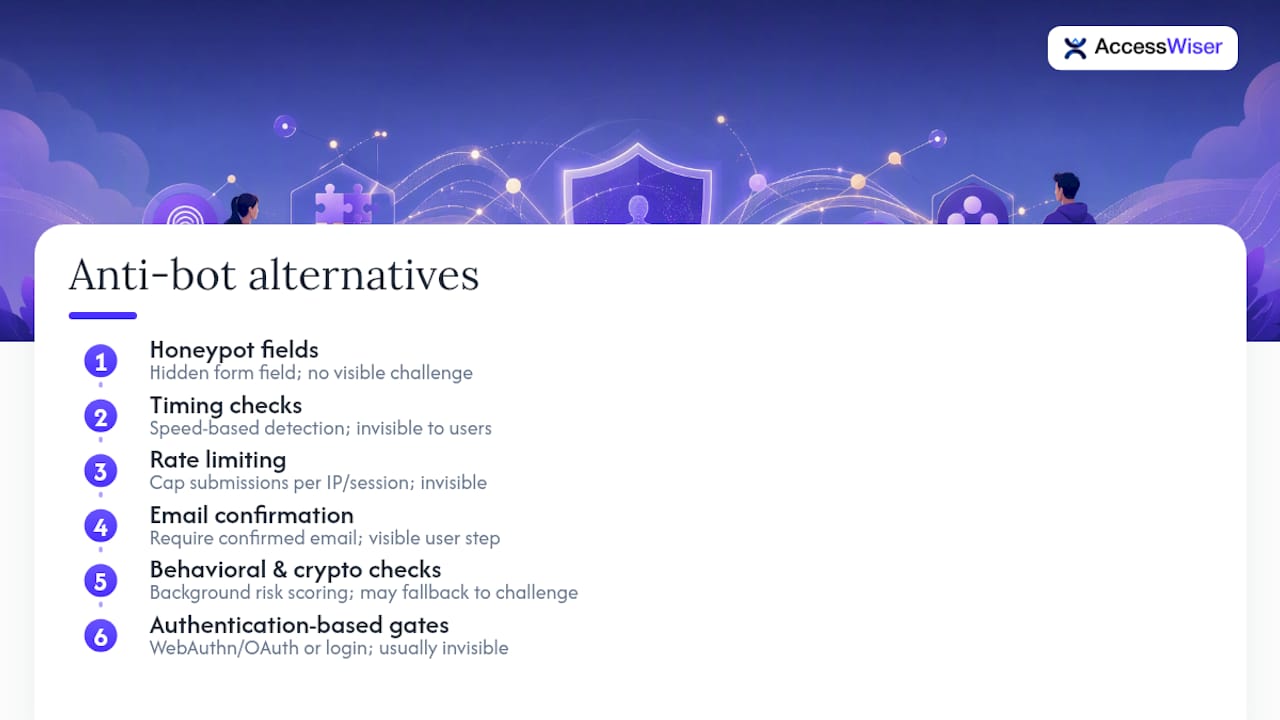
1. Honeypot fields. Add a hidden form field that’s invisible to sighted human users but visible to most scraping bots, which fill it in reflexively. Any submission with that field populated gets silently rejected. It costs nothing in friction and catches a surprising share of unsophisticated bot traffic.
2. Timing checks. Legitimate users take measurable time to read a form and type into it. A submission completed in under a second or two is almost certainly automated. Pair this with honeypots for a cheap, invisible first filter.
3. Rate limiting. Cap how many submissions a single IP address or session can send in a given window. This stops brute-force and volume attacks without asking a human to prove anything.
4. Email confirmation. Requiring a confirmed email address before an account or submission activates adds a real cost for bulk-abuse bots while asking a legitimate user for something they’d likely provide anyway.
5. Non-interactive behavioral and cryptographic checks. A newer category of anti-bot tooling scores risk in the background using signals like request patterns, browser fingerprint consistency, and proof-of-work puzzles the browser solves silently, without ever showing the visitor a challenge. Done well, these approaches reduce how often anyone sees a visible test while still filtering out a large share of automated abuse. The trade-off is that some of these systems still fall back to a visible challenge for borderline scores, so the fallback itself needs the same text-alternative and multi-modality treatment as any other CAPTCHA.
6. Authentication-based gates. For flows that already require login, WebAuthn (passkeys and hardware security keys) and OAuth through an established identity provider authenticate a person without asking them to solve anything visual or cognitive at all. Confirmed-email flows work similarly for lower-stakes actions. The accessibility trade-off is minimal since these methods rely on credentials the person already manages, though WebAuthn setup does require an initial device-pairing step some users will need help with.
Pro Tip: Run your risk assessment by form, not by site. Your newsletter signup and your password reset flow don’t carry the same abuse risk, so they don’t need the same defense. Reserve any visible challenge for the highest-risk forms and default everything else to invisible checks.
Building an Accessible CAPTCHA Strategy: A Practical Checklist
Start with one decision: does this form actually need an interactive challenge? Most don’t. Contact forms, newsletter signups, and comment sections almost always do better with honeypots, rate limiting, and timing checks, which stop the same spam volume without asking anyone to prove their humanity. Reserve visible CAPTCHAs for genuinely high-risk endpoints, account creation at scale, payment flows facing known fraud pressure, or public APIs, and even there, choose the least interactive option that still does the job.
If a challenge is unavoidable, build it around these implementation requirements:
- A text description that states the CAPTCHA’s purpose, satisfying G143, read aloud correctly by screen readers.
- A second CAPTCHA option in a different modality, satisfying G144, reachable without starting over.
- Full keyboard operability: every control reachable by Tab, every action triggerable without a mouse.
- ARIA live regions that announce success, failure, and loading states, so a screen reader user knows the outcome without hunting for it.
- Visible, logical focus handling: focus moves to the challenge when it opens and returns sensibly on completion or error.
- Color contrast that meets WCAG’s minimum ratios for both the challenge content and any instructional text.
- Adjustable or removable time limits, since a fixed countdown penalizes anyone who reads or processes more slowly.
- Clear language labeling so screen readers and translation tools render instructions correctly.
Operationally, three habits keep the whole thing from decaying over time:
| Operational habit | Why it matters | How often |
|---|---|---|
| Limit challenge frequency for repeat and logged-in visitors | Reduces cumulative friction and false-positive exposure | Reviewed each release cycle |
| Document CAPTCHA choice and alternatives in your accessibility statement | Gives auditors and users a clear record of intent and options | Updated whenever the approach changes |
| Schedule regression scans after any form or plugin update | Catches new barriers introduced by updates before users report them | Every deployment touching forms |
Documenting your approach matters as much as building it correctly the first time. An accessibility statement that names which forms use challenges, which alternatives exist, and how users can report a problem gives both visitors and compliance reviewers something concrete to check against, rather than a vague promise that “accessibility matters to us.”
Testing and Auditing Your CAPTCHA for Real Accessibility
Automated scanners catch a meaningful slice of CAPTCHA problems, missing alt text, missing ARIA attributes, insufficient contrast, but they can’t tell you whether a screen reader user can actually complete the challenge and submit the form. That verdict only comes from testing with the tools people actually use.
Run these checks in order:
- Screen reader walkthrough. Load the form fresh in VoiceOver on macOS or iOS, then repeat with NVDA and JAWS on Windows, since each renders ARIA slightly differently. Confirm the CAPTCHA’s purpose is announced, not just its presence.
- Keyboard-only pass. Unplug the mouse. Tab through the entire form, trigger the challenge, complete it, and submit, watching for any point where focus disappears or gets trapped inside an iframe.
- Audio fallback check. Listen to the audio alternative yourself before assuming it works. If you struggle to transcribe it correctly, so will most users relying on it.
- Automated scan pass. Run the form through an automated accessibility scanner to catch structural issues, missing labels, contrast failures, that manual testing might overlook in a longer session.
- Regression re-check. Repeat all four steps after any update to the CAPTCHA vendor’s script, your form library, or your theme, since third-party scripts change without warning.
Scheduled re-checks matter more here than almost anywhere else on a site, because CAPTCHA vendors push updates on their own timeline, often silently. A working, accessible implementation in January can break in March after a vendor pushes a new widget version. AccessWiser’s scanning and re-check model is built around exactly this pattern: catching the regression a script update introduces before a user reports it, rather than after.
Pro Tip: Keep a running log of every user-reported CAPTCHA problem, even the ones that turn out to be user error. Patterns in that log tell you which modality is actually failing people in practice, not just in theory.
Fixing the Most Common CAPTCHA Accessibility Failures
Most CAPTCHA accessibility bugs trace back to a small set of repeat offenders. Here’s where to look first.
Keyboard and focus trapped in a third-party iframe. Many CAPTCHA widgets load inside an iframe you don’t control directly. If Tab order skips it or traps focus inside with no way out, check whether the vendor offers a native (non-iframe) integration or a documented tabindex fix. If not, that vendor may need replacing rather than patching.
Silent status changes. A CAPTCHA that shows “verification failed” only as a visual color change, with no ARIA live region announcing it, leaves screen reader users submitting into a void. Add an aria-live="polite" region tied to the status message, and test that it actually fires.
Audio fallbacks that require transcription under pressure. If your audio alternative is just as hard as the visual one, it’s not really an alternative. Where possible, replace it with a genuine text-based or logic-based option rather than another sensory puzzle.
Behavioral false positives with no appeal. If your invisible scoring system misflags a legitimate assistive-technology user as a bot, they need a way out that doesn’t dead-end. Build a fallback path, an email verification or a support contact, and log each flagged case so you can spot patterns and adjust thresholds.
- Replace iframe-trapped widgets with vendor options that support native focus management.
- Add ARIA live regions to every status change a CAPTCHA produces.
- Swap difficult audio puzzles for genuine text or logic-based alternatives.
- Give behaviorally-flagged users an appeal path and log the flags for pattern review.
Author Perspective: What Teams Get Wrong About CAPTCHA Trade-Offs
Most teams treat CAPTCHA as a security decision made once by whoever set up the form, then never revisited. That’s the real failure, not any single widget choice. Security requirements change, vendor scripts update, and a challenge that was reasonable two years ago can quietly become the least accessible part of your site.
The fix isn’t picking a “more accessible” CAPTCHA and moving on. It’s sequencing the work. Start with your highest-traffic, highest-consequence forms: account creation, password recovery, checkout. Those are where a barrier does the most damage and where a legal complaint is most likely to originate. Lower-risk forms can wait, or better, lose their CAPTCHA entirely in favor of honeypots and rate limiting.
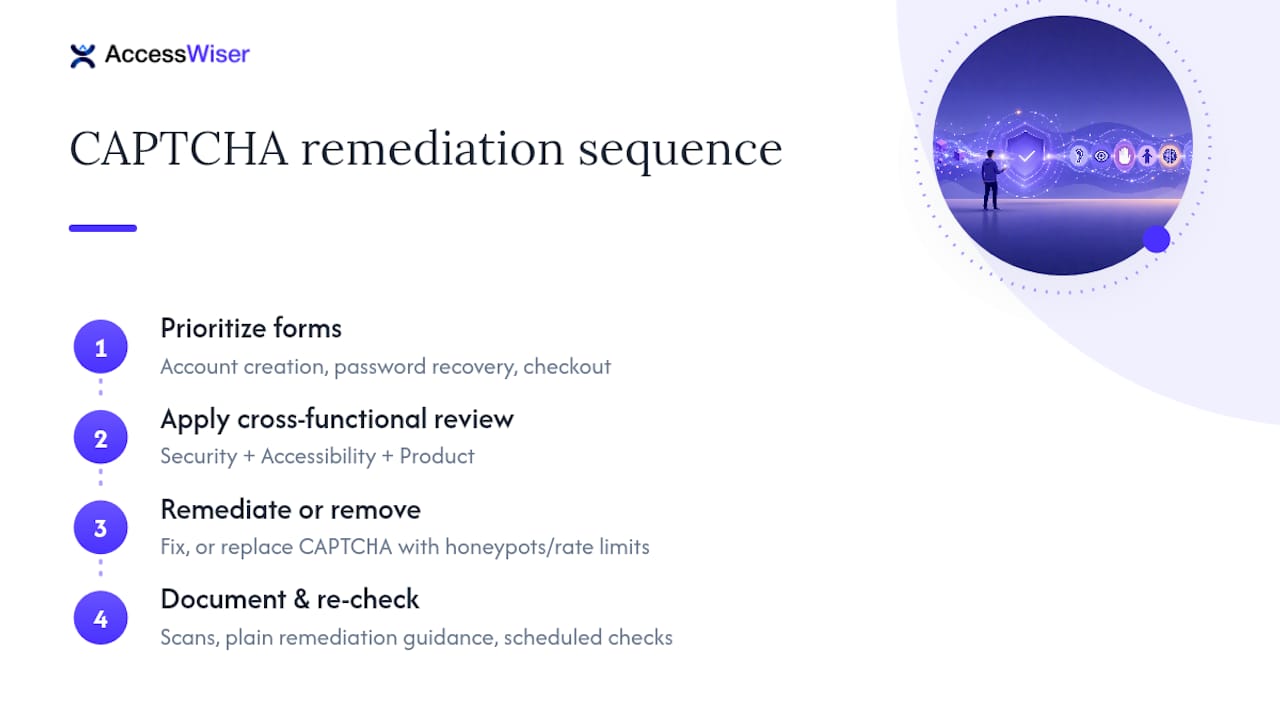
This only works as a cross-functional habit, not a one-time fix. Security picks the anti-bot method, accessibility specialists test it against real assistive technology, and product owns the decision to remove a challenge that isn’t earning its friction. Skip any one of those voices and you get either an insecure form or an inaccessible one.
Documented scans, plain-language remediation guidance, and scheduled re-checks close the gap between fixing something once and knowing it stayed fixed after the next vendor update. That documentation is what turns a good-faith effort into evidence you can actually show.
— Admin
Ready to see where your own forms stand? AccessWiser’s accessibility solutions scan your site against WCAG 2.2 AA, Section 508, and EN 301 549 criteria, flag CAPTCHA and form-level barriers down to the specific element, and schedule ongoing re-checks so a vendor script update doesn’t quietly undo your fix. Start a free trial and get a documented baseline of where your forms stand today.
Sources
Articles on this blog are general information about web accessibility, not legal advice. Laws change and their application depends on your specific situation — for decisions with legal consequences, consult a qualified legal professional.
Articles on this blog are general information about web accessibility, not legal advice. Laws change and their application depends on your specific situation — for decisions with legal consequences, consult a qualified legal professional.